Workspaces And Projects
Workspaces group the work for a client, team, environment, or other operating boundary. Projects are the delivery targets inside that workspace.
Think of a workspace as the place where one client or organization is managed. That client may have several projects: a CRM, a public website, an internal service, a data pipeline, and a mobile app. Each project can run its own workflows and jobs, while the workspace keeps shared data connections, datasets, registry records, and lifecycle decisions in one place.
Workspace: Acme Corp
  Projects: CRM, public website, billing service, data pipeline
  Data connections: production CRM DB, reporting warehouse, issue tracker
  Datasets: all workspace projects, or selected projects only
  Workflows: bound to the projects where they are allowed to run
Workspace responsibilities
A workspace owns:
- the client, team, environment, or operating boundary;
- child projects;
- reusable datasets and data connections;
- project availability for shared resources;
- registry records that should be managed together;
- workspace-level search and navigation context.
Use one workspace when one team can share the same registry and data policy. Use separate workspaces when teams need separate data boundaries, provider access, or operational ownership.
Create separate workspaces when a user should be able to answer "which client or operating boundary am I working in?" before they choose a project.
Project responsibilities
A project tells Flow Steward where work happens and which automation is allowed to act on it.
Typical project configuration includes:
- project name, description, and operational rules;
- workflow bindings;
- execution policy;
- notification routes;
- linked datasets;
- workspace data connections and scoped dataset access;
- project-specific settings for external agents or automation.
Use projects for the thing that work is actually performed against. Use workspaces for the boundary that owns several of those things.
Create a workspace for a client or boundary
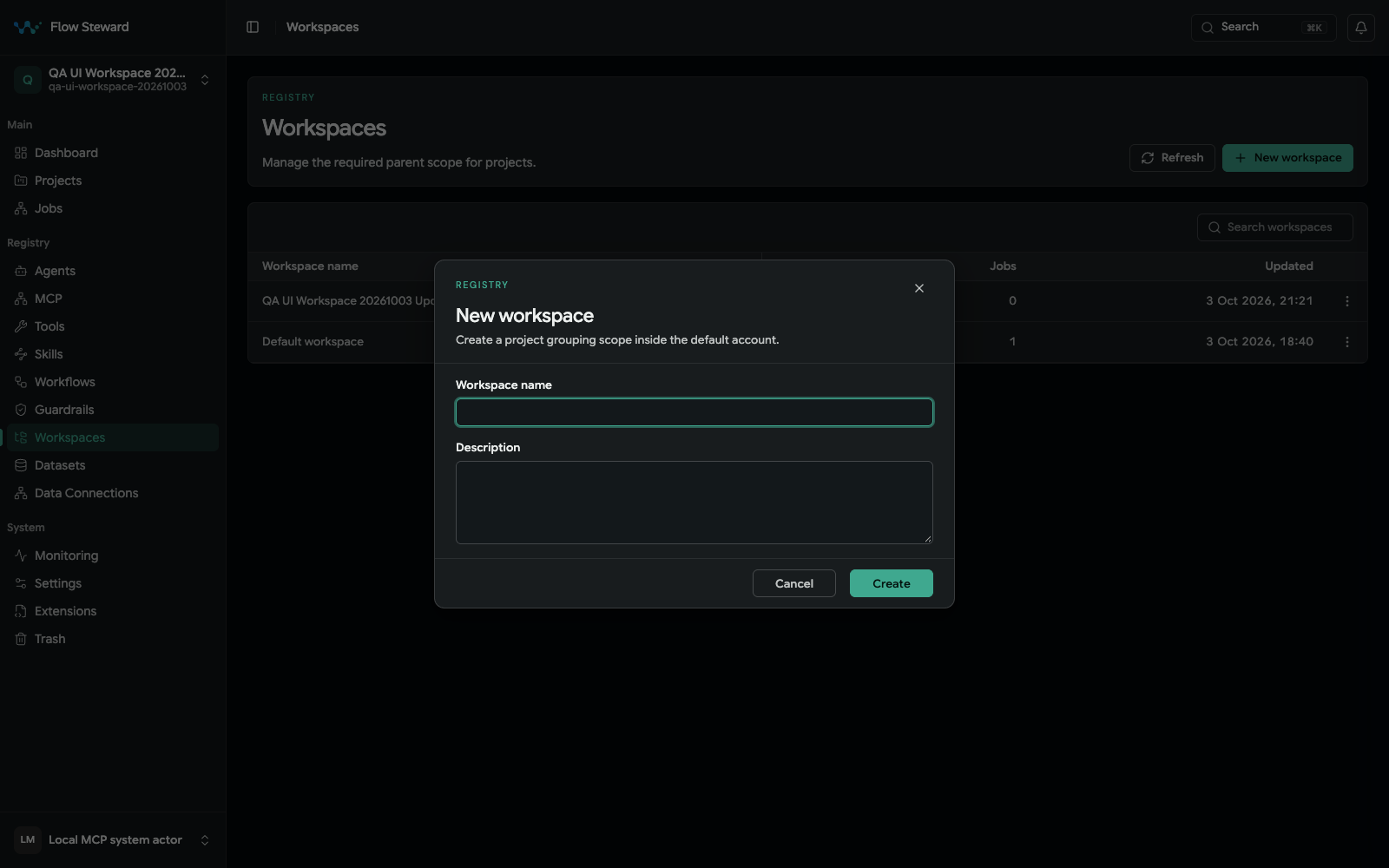
The blank New workspace dialog. Capture stopped before Create, so no workspace was added.
- Open
Registry. - Open
Workspaces. - Create or edit the workspace.
- Set a clear display name such as the client, team, or environment name.
- Use the description to explain what belongs in this workspace.
- Open the workspace detail page to review its projects, data connections, and datasets.
Good workspace boundaries include:
- one client with several delivery targets;
- one department with multiple internal systems;
- one environment such as local, development, staging, or production;
- one data-governance boundary where projects may share datasets.
Add a project
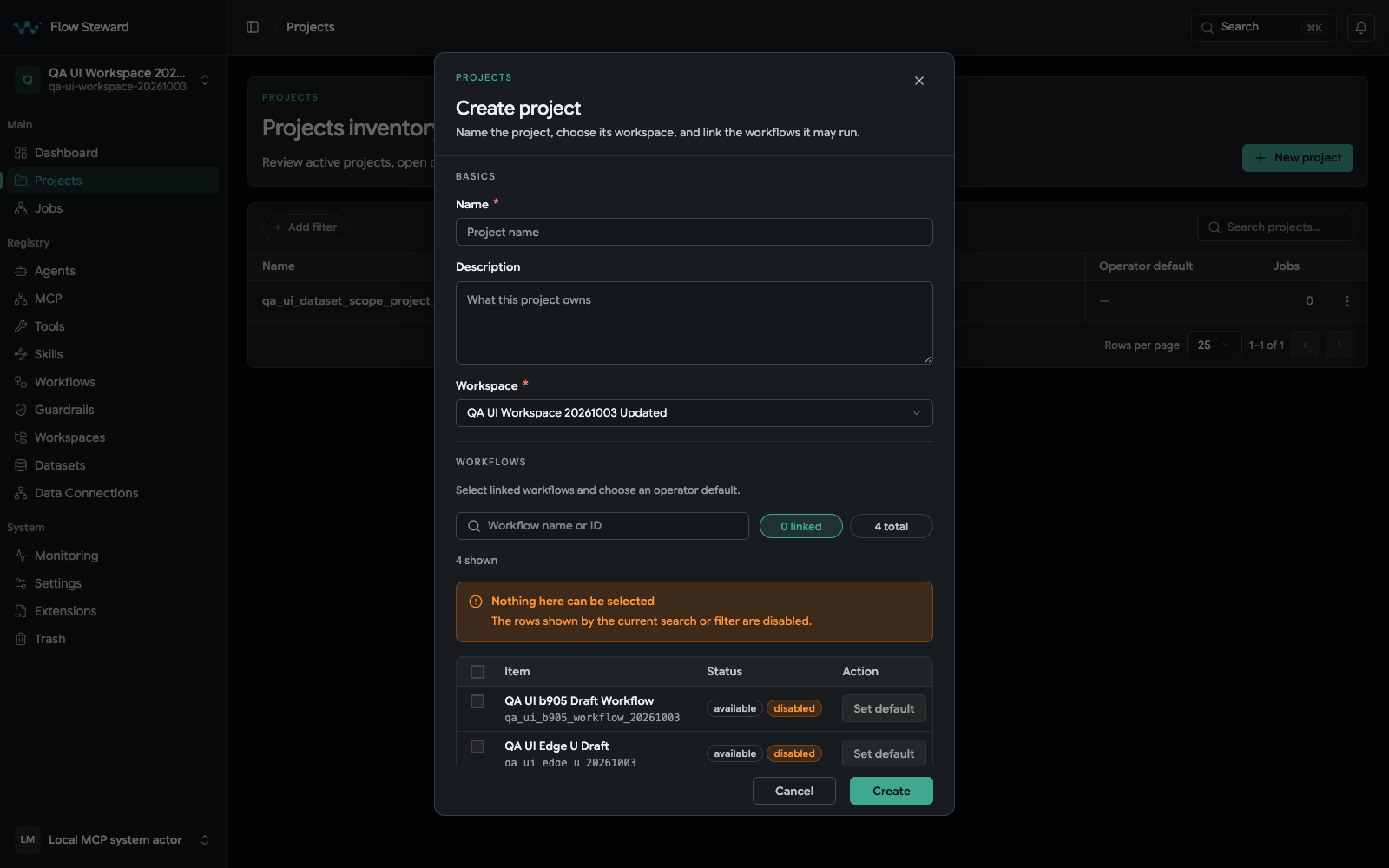
The current Create project form. This fixture intentionally has no enabled workflow to select, so the workflow rows show the disabled state rather than a successful binding.
- Open
Projectsand chooseNew project. - Enter the name and description, and select the workspace.
- Choose default provider/model and linked workflows only when the project needs them. Project creation does not require a Git repository or project type.
- Save, then open the project edit page.
- Review project metadata, provider access, and workflow bindings.
- Attach datasets from the edit page's
Datasetstab when the project should query structured data. - Assign workspace data connections and review project rules/tools as needed.
- Configure notification routes if the project should send approvals or status updates to a provider such as Telegram.
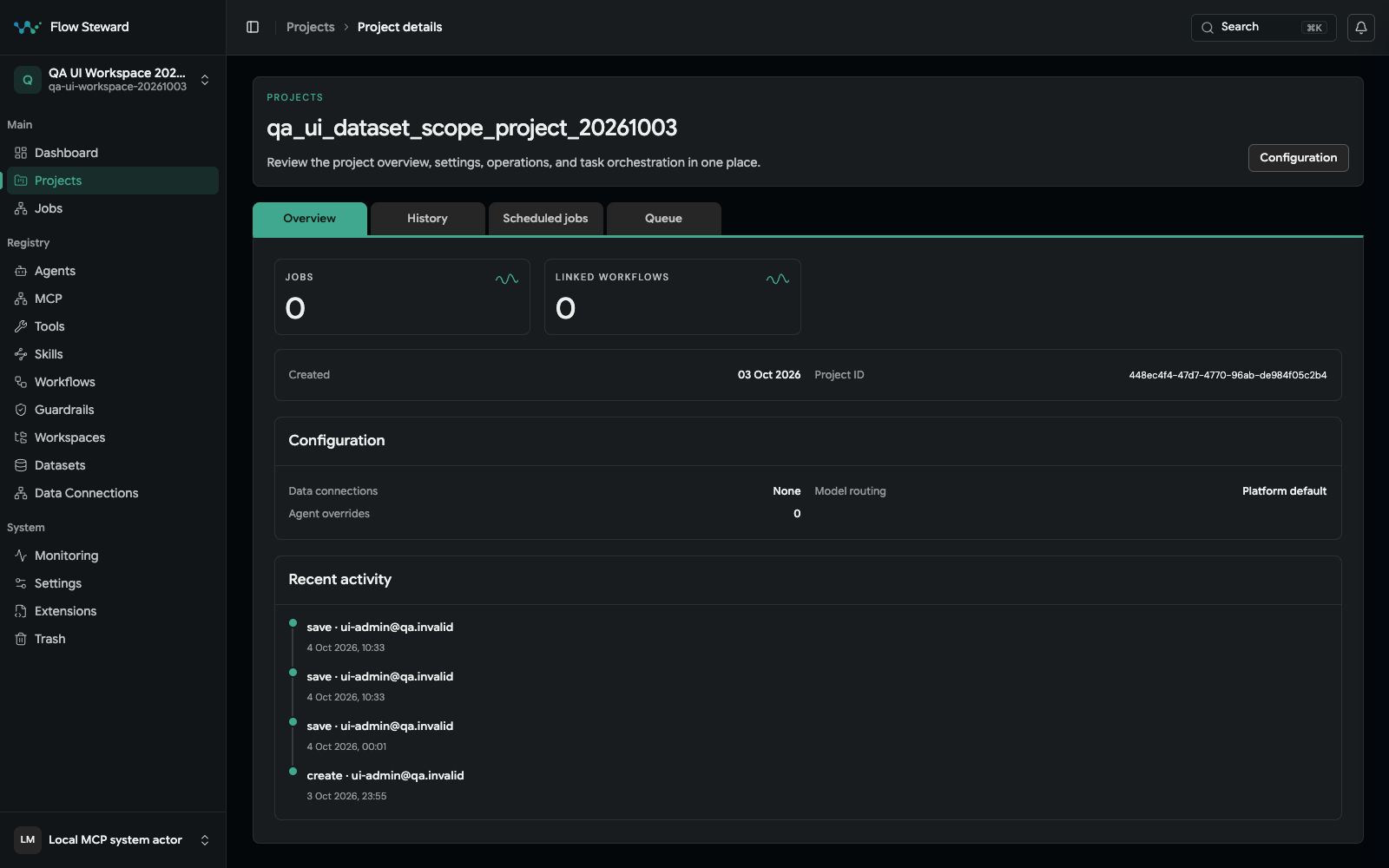
A project overview in the isolated synthetic workspace.
Example: manage one client with several projects
Use this pattern when Flow Steward is operating across several systems for the same client.
- Create a workspace named after the client.
- Add a project for each delivery target, such as
CRM,public website,billing service, anddata pipeline. - Add workspace data connections for shared sources such as the CRM database, reporting warehouse, or issue tracker.
- Create datasets from those connections.
- Choose
All workspace projectsonly for data that every project can safely use. - Choose
Specific projects onlywhen a dataset should be limited to one or a few projects. - Bind workflows only to the projects where they are allowed to run.
- Review project rules and assigned connections before agents use that context.
- Review jobs by project when you need to understand what happened on one target.
This keeps shared client context discoverable without giving every workflow access to every data source.
Move a project to another workspace
Move a project when the operating boundary changes, for example when a project is transferred to another client workspace or split into a dedicated team workspace.
- Open the project edit screen.
- Change the workspace assignment.
- Save the project.
- Review datasets and data connections because access is workspace-scoped.
- Recheck workflow bindings and notification routes.
- Review project rules for the new operating boundary.
Datasets belong to a workspace. If the moved project still needs similar data in the new workspace, create or attach an equivalent dataset there instead of assuming the old dataset will follow the project.
Project context
Project rules and assigned data connections feed internal scoped context. The project Knowledge Base and Index Status pages have been removed, as have the public KB/profile MCP tools. Core has no repository code indexing, automatic/manual reindex, code-graph tools, or schema-index snapshots.
Workspace data connections and dataset discovery remain supported data features. See Project Context and MCP Reference.
Attach datasets to a project
- Open the project.
- Open the
Datasetstab. - Select available datasets.
- Save the dataset bindings.
A project can use workspace-wide datasets automatically. Specific-project datasets must be explicitly selected.
Only datasets from the same workspace are available. To give a project access to data from a different operating boundary, create a deliberate connection and dataset in the project's workspace.