Workflows
A workflow is a set of steps connected by one execution graph, with Groups, parallel lanes, For each loops and hooks where needed. Operators use workflows to turn repeatable work into a controlled process. The canvas itself is described in Workflow Builder.
Create a workflow
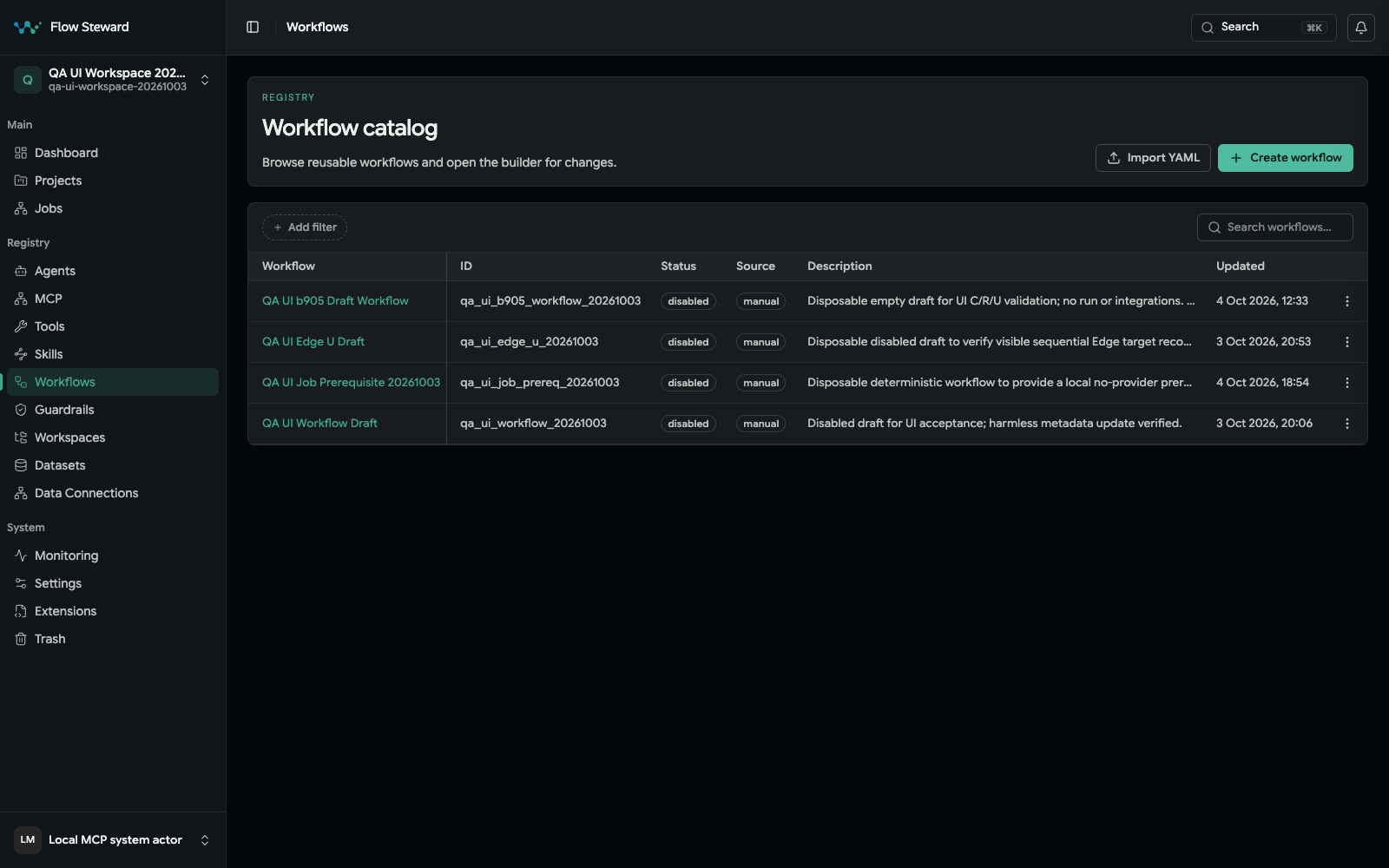
The local workflow list opens workflows already in this installation. Create workflow provides access to the separate Workflow Catalog. The records shown are synthetic test data.
- Open Workflows.
- Choose Create workflow, or open an existing workflow to edit it.
- Set a display name, a stable workflow ID and a description. Create opens the empty canvas.
- Add steps, Groups and loops on the canvas and Apply changes. See Workflow Builder.
- Declare inputs and outputs under Interface (or the Smart setup tab).
- Link the projects that may run it on the Projects tab.
- Check Diagnostics for validation issues, then enable the workflow.
- Run a test job before using the workflow for production work.
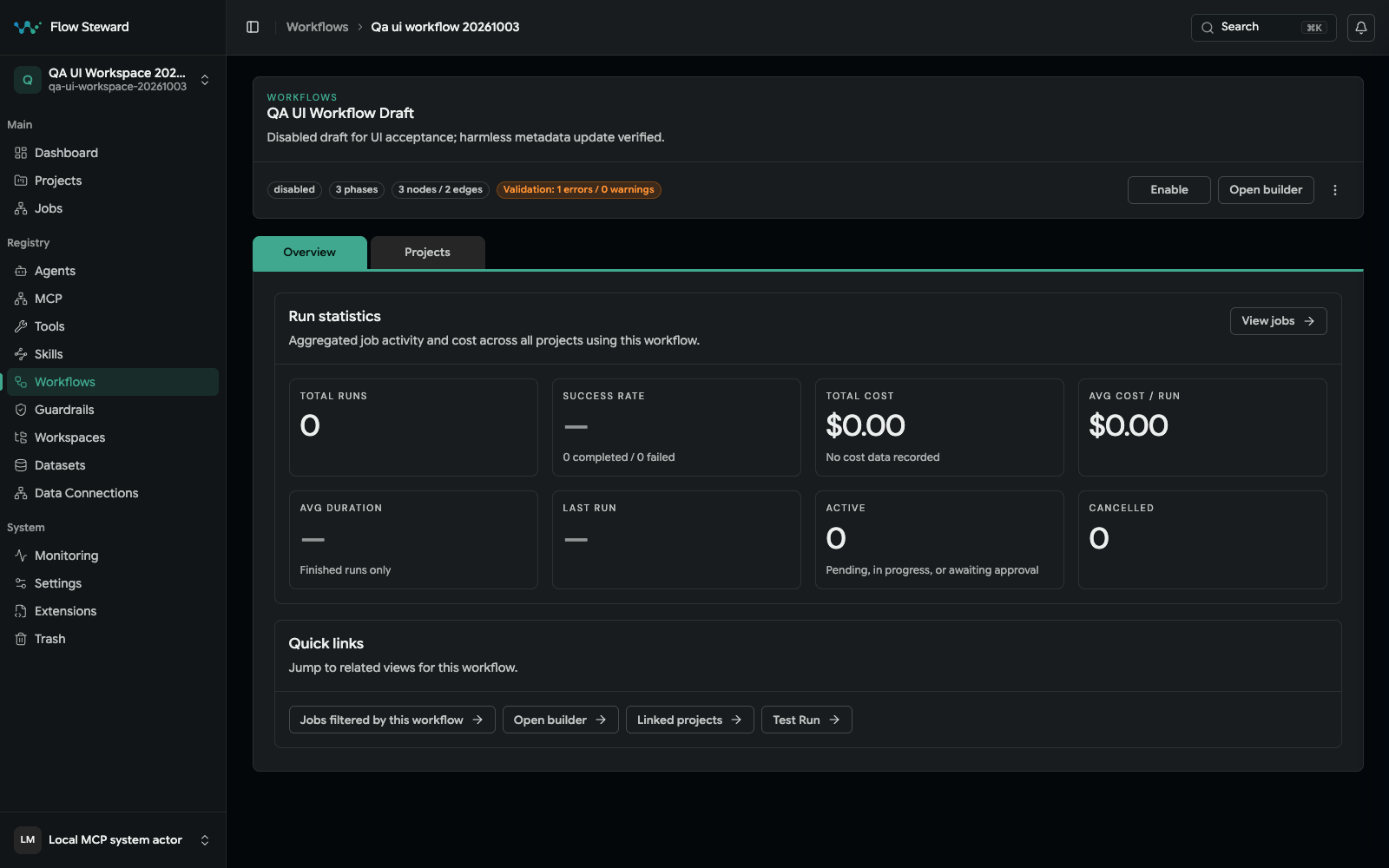
A draft workflow overview. A draft or disabled record is not evidence that validation, project binding, or a Test Run succeeded.
Start from the Workflow Catalog
The Workflow Catalog contains ready-made reusable workflows, including operational automation and examples from Flow Steward and community contributors. It is the Catalog tab next to Workflows; Create workflow starts from scratch. Operators can browse; creating a workflow requires an administrator. Standard configuration uses the official catalog. If it is disabled, creation opens the ordinary form.
Open an entry, review its requirements, then choose Use template. Select a project and resolve the dependency preflight before Create draft. Catalog creation uses the import portability checks and saves independent disabled drafts, including bundled children. Configure connections and credentials, validate, and review triggers and effects before enabling and testing them. Later catalog updates do not overwrite your local workflows.
See Workflow and Extension Catalogs for the full procedure and how to contribute your own workflow.
A full export can carry invoked child workflows in the same bundle. Import handles children before their callers and remaps references; review the entire bundle and its dependency decisions, not just the root workflow. Clones also start disabled.
Use the canvas builder
Open the workflow and choose Open builder (View workflow (read-only) for a workflow an extension installs). The builder is described in its own page, Workflow Builder: adding and connecting steps, Groups and parallel lanes, For each loops, hooks, Undo/Redo, files returned from a workflow, and the workflow page tabs.
Canvas structure stays local until Apply changes; leaving the builder asks before discarding unapplied changes.
Author a disabled workflow through MCP
Connect an external agent using the MCP quick start. Use local workflows before composing new structure:
- Call
workflow_examples_search(project_name, query)and inspect suitable workflows. - Use
capability_search(project_name, query)andcapability_describe(project_name, ref, operation_id)to obtain live contracts and permitted connection readiness. - Get
workflow_authoring_schema(step_kind)and author exactly one explicit workflow ID in the existingplatform.workflow_bundle.v1format. - Call
workflow_draft_validate(project_name, bundle_yaml, resolutions); onlyuse_existingandmap_existingresolutions are supported. - When validation permits saving and the user requests a draft, call
workflow_draft_savewith the same bundle and ID.
Save creates a disabled draft atomically and does not overwrite existing workflows,
install dependencies, enable, execute, schedule or publish. Creation requires existing
administrator authority; machine tokens remain operators. Read access and launch grants
are not creation grants. Validation reports unperformed execution checks separately.
Inspect a saved draft in the manual editor or workflow_list with enabled_only=false.
A user reviews and enables it when appropriate before Test Run; Test Run can cause
external effects. See MCP Reference for exact arguments.
Step kinds
The builder's Add step menu groups the kinds into Actions, Data, Flow, Finish, Groups and Canvas. See the step kinds table and the Workflow Step Kinds reference.
Place approvals before later effects
An Approval step pauses the run until a person approves or rejects; its Approved and Rejected outcomes decide what runs next. To require human approval before an external action, put the Approval step before the step that performs it. An Approval cannot undo effects of steps that already ran. Separate step-autonomy policy may impose its own approvals.
Run a workflow
Use the administrator Test Run in the workflow builder, the public
workflow-run API, built-in MCP workflow_trigger, or a configured webhook or
provider trigger. Each path requires the matching workflow trigger channel,
project binding, role, and declared inputs.
The public CLI has workflow discovery/validation commands but no task-submit or workflow-run command.
Test a workflow from the workflow page
This path requires an administrator because Test Run opens the guarded builder route. Operators can launch a pre-provisioned enabled workflow through the public API, MCP, or a configured trigger with the appropriate authority.
Use this path for the first run, after edits, and before enabling a workflow for regular operators.
- Open
Registry. - Open
Workflows. - Select the workflow.
- Confirm the header shows the workflow as enabled and valid, or review any validation warnings first.
- If the workflow needs a project context, check that a project is already
linked in the URL or in the workflow page. If not, use the
Project contextselector in the test-run drawer. - Choose
Test Runfrom the workflow header. - Fill
Test Run Summarywith the request you want the workflow to handle. - Fill any generated
Workflow inputs. Required inputs are marked in the drawer. - Choose
Test Run. - Follow the accepted job in the embedded Job Details view or open its full Job Details page.
The durable job view can show:
- final status;
- workflow ID and project ID;
- execution ID or ephemeral session label;
- final report;
- final result preview;
- approval decision controls;
- final outputs;
- final artifacts;
- per-step trace rows;
- raw payload details for debugging.
Submission returns a durable job/thread asynchronously. The older Latest workflow test run result panel is a fallback only when no job ID is available; do not rely on its approval controls for the normal queued-job path. Approval labels in Job Details depend on the active gate kind.
Test Run can execute real model calls, tool calls, dataset queries, HTTP
requests, child workflows, and extension actions. Use demo data or a low-risk
project until the workflow contract is trusted.
Before choosing Run workflow test run or Run step test run, review the
selected steps, target URLs, credentials, and inputs. HTTP steps can send real
requests, including writes, and configured model calls may incur provider costs.
Only extension effects declared with test_mode_behavior: suppress are
suppressed through the host's effect-suppression path; this is not a universal
runtime sandbox and does not suppress every extension action or HTTP step.
Start an explicit workflow run
- Select an existing project and its bound, enabled workflow.
- Inspect the workflow contract and fill its required inputs.
- Use
POST /api/workflow-runsor MCPworkflow_trigger. The HTTP request usesproject_id,workflow_id, andinputs; MCP usesproject_name,workflow_id, andpayload. - Ensure the workflow admits the
mcptrigger channel and the token hasworkflows.writeplus required project/workflow access. - Follow the returned
job_idin Jobs or through the job-read tools.
The HTTP API supports a stable Idempotency-Key for identical retries.
test_mode can still invoke configured models, tools, connectors, and external
services. See the Public API Quick Start.
Manage scheduled runs
The project Scheduled jobs page lists existing schedules and recent runs. It supports run-now, enable/disable, and deletion. Administrators can choose a linked workflow there to open its schedule editor; workflow authoring controls are not available to operators or viewers. The retired project submission dialog is no longer a way to create a schedule.
To create or edit a schedule, open the workflow's Smart setup tab, set Status to enabled, tick Schedule under Trigger channels and choose Save workflow settings. The Schedules tab then appears next to Smart setup. Choose a linked project there; New schedule and Edit need a linked project. An unsaved trigger selection is not sufficient.
Enter values for the workflow inputs that need caller-supplied values; fixed
defaults are applied automatically. Input definitions belong in workflow
settings, not in the schedule editor. Choose a timezone and a friendly repeat
pattern or custom cron, and use Preview next runs. Leave the
schedule paused for a controlled setup check, then save it and inspect the
project's Scheduled jobs list. Saving workflow settings alone does not create
or enable a schedule. API clients can use the authenticated internal contract
for /api/projects/{project_id}/scheduled-jobs.
Scheduled runs need an explicit workflow and declared inputs admitted by its
schedule channel. The stored request is revalidated for execution; creating or
enabling a schedule does not bypass later workflow or credential changes.
Overlap protection is automatic for each schedule within its account and project.
There are no user-configurable concurrency scope/key, catch-up policy,
instructions, or task-summary fields in the schedule editor or its API request.
The runtime derives its run summary from the workflow. Review timezone and cron
validity, including daylight-saving boundaries, before relying on a schedule.
Configure Automation rules
Open Automation on the workflow page, or the Automation tab of a group or step drawer in the builder, and add a rule (from a common one or a blank rule). Choose the event, source, conditions, action, and target within that scope. The action sets differ:
| Scope | Actions |
|---|---|
| Workflow | Resume job, Approve job, Reject job, Cancel job, Send notification. |
| Group | Send notification. |
| Step | Retry step, Send notification. |
An enabled matching Approve job rule makes an automated approval decision;
it is not a request for another manual click. Approval-related reactions use the
job's thread and the event's approval_id, then pass through the canonical
approval service. Missing or stale gate identity does not authorize a new gate,
and the gate's allowed actions still apply. Do not use Resume job as a universal
replacement for an ordinary approval decision.
Review every rule before enabling automation. Start with a disabled rule and synthetic inputs, then inspect one controlled matching event and its decision before allowing timed work, notifications, or other external effects.
Export and import workflows
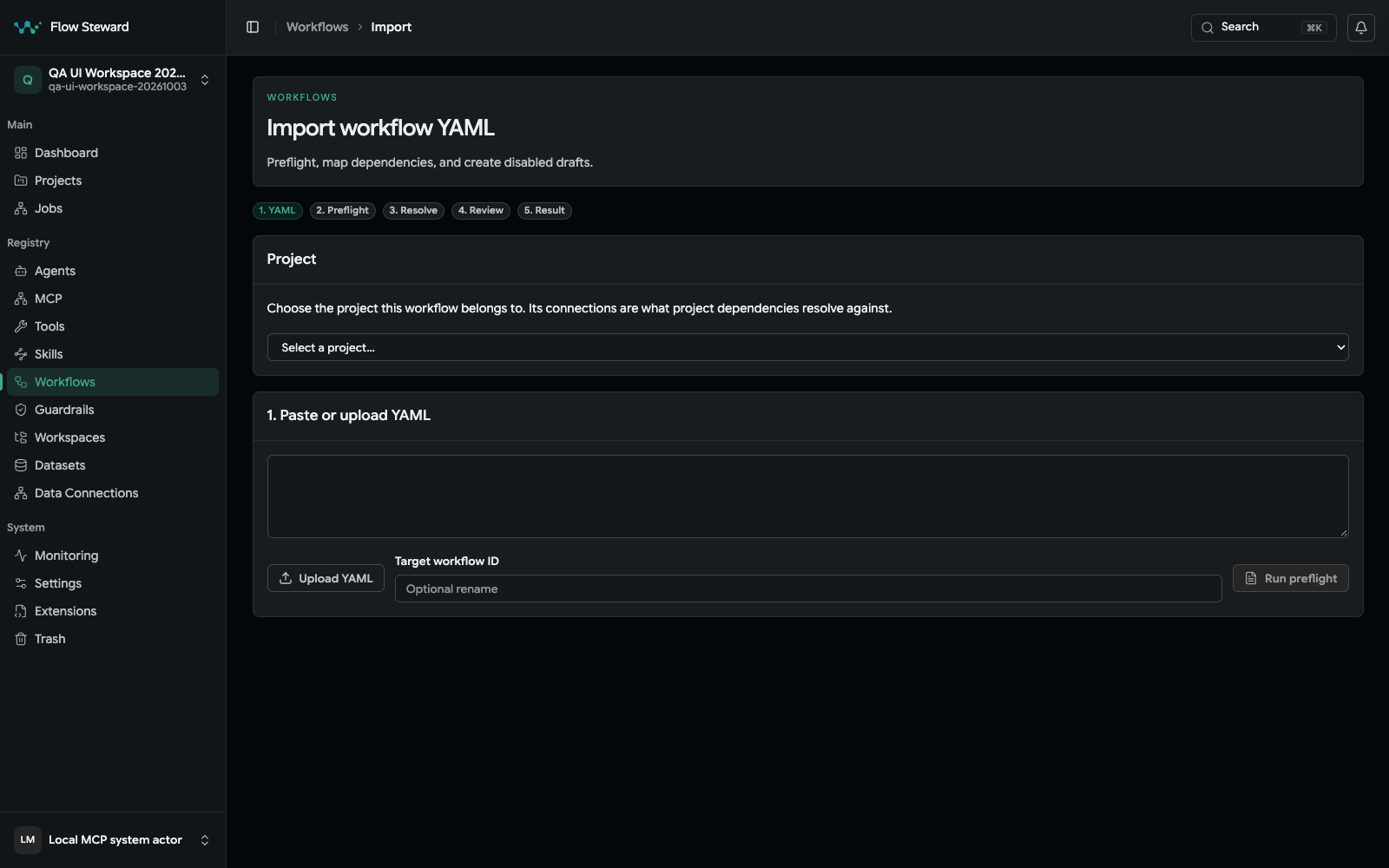
Import starts by choosing a project and supplying YAML. No file was uploaded and preflight was not run during capture.
Use workflow export/import when you build or test a workflow in one Flow Steward environment and then move it to another environment, such as local development, staging, or production. For a step-by-step guide to copying workflows between environments, see Workflow Export and Import.
Typical export and import flow:
- Build or update the workflow in the source environment.
- Validate it and run at least one
Test Run. - In the builder choose More › Export YAML.
- Save the exported YAML bundle outside the source environment.
- Open the target environment.
- Open Workflows.
- Choose Import YAML.
- Paste the YAML bundle into the import screen.
- Choose
Preflight. - Review dependency status before applying the import.
- Resolve missing or conflicting references.
- Choose
Import workflow. - Open the imported workflow and run validation/preflight while it remains disabled.
The backend rejects an actual Test Run of a disabled workflow with HTTP 422. This means validation can precede enablement, but execution cannot. Review trigger channels, schedules, webhooks, bindings, credentials, and side effects before enabling. Use an isolated provider-free fixture for target execution; do not enable an effectful import merely to bypass the guard.
The import preflight can report these dependency states:
| State | What it means |
|---|---|
resolved | The target environment already has the dependency. |
missing | A referenced workflow, tool, dataset, extension, or connection is not present. |
conflict | A target object exists but does not match the exported reference. |
requires_mapping | You must map the exported reference to an existing target object. |
requires_extension_install | Install or enable an extension before importing. |
requires_project_connection | Create or map a project connection before the workflow can run. |
protected_reference | The export only includes a safe reference for protected extension-owned structure. |
blocked | The workflow cannot be imported until the blocking problem is fixed. |
Imported workflows are saved disabled and marked as draft portability state. That is intentional: a workflow that works locally may point at different projects, datasets, connections, provider credentials, or external URLs in staging or production.
Protected extension workflows may expose Export reference instead of full
Export YAML. A reference export is useful for dependency mapping, but it does
not give operators permission to clone or edit extension-owned internals.
Follow the run
After a browser launch:
- Open
Jobs. - Select the new job.
- Watch status, current agent, messages, logs, errors, approvals, costs, and result artifacts.
- If the job pauses for approval, read the approval packet before approving or rejecting.
- If the job fails, inspect the failed step and fix the underlying dependency, input, or permission before retrying.
CLI equivalents are documented in CLI Reference, but the
normal operator path is through Projects, Workflows, and Jobs.
Public workflow interface
The workflow interface is the contract between users, triggers, agents, and automation. Configure it before exposing the workflow to operators or external systems.
| Field | Purpose |
|---|---|
trigger_channels | Where the workflow can be launched: UI, API, schedule, webhook, MCP, or another workflow. |
input_mode | Whether inputs are free-form, schema-backed, or generated from workflow contracts. |
strict_inputs | Rejects unknown or incomplete inputs when the workflow must be predictable. |
expected_inputs | Named user inputs with type, label, requirement, default, and help text. |
output_mode | How final outputs are exposed to the caller and UI. |
expected_outputs | Named outputs that downstream users or child callers can rely on. |
expected_artifacts | Files or structured artifacts the workflow should produce. |
side_effects | Declares whether the workflow can write code, call external systems, send notifications, or mutate state. |
Good contracts make explicit workflow launches, Test Run, MCP calls, and nested workflow
invocation safer because the UI can generate the right fields and the runtime
can validate mappings earlier.
Groups, loops and hooks
There are no phases. Steps that belong together go into a Group (run once, one after another), work that can run side by side into Parallel lanes, and work per item into a For each. A hook is a place where each project adds its own steps. Each step or group can carry its own error policy and an On error route. See Workflow Builder.
Data flow and variables
Workflow data moves through mappings rather than hidden shared state.
| Surface | What it contains |
|---|---|
workflow_data | The run-level state available to later steps. |
state.* | Named variables written by prior steps or initialized from inputs. |
input_mapping_jsonb | How a step reads workflow data into its local input contract. |
output_mapping_jsonb | How a step writes local outputs back to workflow data. |
outputs | User-facing or caller-facing final results. |
artifacts | Files and structured outputs attached to the run. |
agent_messages | Agent-visible context and trace messages. |
Agent and skill contracts are especially important: their input variables and output variables are used by the frontend when building workflow forms and step configuration panels.
Small typed mapping example
Define a text workflow input named release_version. Map it into one step's
declared version input, then map that step's declared summary text output to
state.release_summary. A later step reads the named state value and the public
workflow maps it to a declared final summary output. Validate after every
contract or mapping change. Do not guess expression syntax or map an entire raw
provider response where one typed field is sufficient; nullability, arrays, and
object shape must match the selected step's current contract.
Parallel lanes
Use Parallel lanes only when the lanes have no ordering dependency on each other. The group continues when all lanes finish. Each lane lands only the values it changed; when two lanes write the same field, the later lane in lane order wins. Lanes never read each other's results; the steps after the group read all of them. If, Switch, Approval, Wait and Stop steps are refused in a lane. Inspect per-lane results and trace data in the job. See Workflow Builder › Parallel lanes.
Incoming webhooks
Incoming webhooks let external systems start a workflow without a human opening the UI.
Use them for issue trackers, CI systems, support queues, monitoring alerts, or any system that should trigger a workflow automatically.
Before creating the webhook:
- Confirm the workflow is enabled.
- Open the workflow's Smart setup tab.
- Tick Incoming Webhook under Trigger channels.
- Add Expected inputs for every value the external system must provide, then Save workflow settings.
- Make sure the workflow is linked to an enabled project.
- Confirm the deployment has a correct public base URL when callers are outside the local network.
Create the webhook:
- Open the workflow.
- Open the Webhook tab (it appears once the Incoming Webhook channel is saved).
- Under Incoming webhooks, choose New webhook.
- Fill in the webhook form.
- Enable the webhook.
- Add a description that names the source system, such as
GitHub issue intakeorPagerDuty incident trigger. - Choose an auth mode.
- Choose allowed content types.
- Set body, file, and file-count limits.
- Choose whether the caller must send an
Idempotency-Key. - Choose the response mode.
- Add exact IPs or CIDR ranges when the caller has stable source addresses.
- Map external payload fields to workflow inputs.
- Choose
Create webhook. - Copy the public URL and the one-time credential reveal.
- Store the credential in the source system secret manager.
- Use the generated cURL or the source system test delivery to send a low-risk payload.
- Review the dry-run result or created job before enabling production traffic.
Webhook URLs use the public route
/webhook/workflows/<entry_key>. The entry key is generated by Flow Steward; do
not hand-author predictable keys.
Configuration fields:
| Setting | Purpose |
|---|---|
auth_mode | Bearer token, HMAC SHA256, shared secret header, or basic auth. |
allowed_content_types | JSON, multipart, form, or text payloads accepted by this webhook. |
source_restrictions | Exact IP or CIDR allowlists when the caller is known. |
max_body_bytes | Maximum request body size. |
max_file_bytes | Maximum uploaded file size. |
max_files | Maximum number of uploaded files. |
idempotency_mode | How duplicate webhook deliveries are detected. |
input_mapping | How payload fields become workflow inputs. |
response_mode | Whether the caller receives only an accepted response or waits for a result. |
Supported mapping selector roots are:
| Root | Use it for |
|---|---|
body. | JSON body fields. |
headers. | Header values. Header lookup is case-insensitive at runtime. |
query. | URL query parameters. |
form. | Form fields. |
files | Uploaded file references. |
After a webhook exists, the selected trigger panel lets you copy the public URL, rotate the credential, regenerate the URL, dry-run a payload, or delete the webhook.
Rotate the credential when it may have been exposed. Regenerate the URL when the entry key itself should no longer be trusted. Deleting a webhook stops future deliveries but does not remove historical jobs or delivery evidence.
Provider triggers are related but separate. They come from extensions that
declare workflow_triggers[] and should be used when the provider integration
owns the trigger lifecycle instead of a generic public webhook.
HTTP request steps
Use http_request when a workflow needs to call an external API directly.
Configure:
- method and URL;
- headers and query parameters;
- body template;
- auth mode or credential reference;
- timeout;
- expected status codes;
- retry and error handling;
- output mapping for response status, headers, and body.
Do not put secrets directly in workflow text. Use project connections or credential references so secrets can be rotated and redacted.
Nested workflows
Use invoke_workflow when a reusable child workflow should run inside a parent
workflow.
Configure:
- child workflow id;
- input mapping from parent state to child inputs;
- output mapping from child result to parent state;
- artifact mapping;
- timeout and cancel behavior;
- inline or asynchronous execution behavior when supported.
Deployment-level controls include FS_INVOKE_CHILD_TIMEOUT_SECONDS,
FS_INVOKE_CHILD_TIMEOUT_CAP_SECONDS, FS_INVOKE_CHILD_POLL_SECONDS,
FS_INVOKE_CHILD_CANCEL_ON_TIMEOUT, and FS_INVOKE_INLINE_EXECUTION.
Artifacts
Artifacts are files or structured outputs created by workflow steps. They can be short-lived run evidence, audit material, or persistent deliverables.
Storage can be backed by in-memory storage, local filesystem storage, bundled S3-compatible storage, or external S3-compatible storage. See Feature Configuration for the operator settings.
Notifications and automation
Notification routes can subscribe to workflow and job events such as started, completed, failed, approval requested, approval decided, or artifact produced. Routes can be scoped by project, workflow, event type, and severity.
Use notifications for approval handoffs, failed runs, production-sensitive workflow completion, and scheduled-job reporting.