Workflow Builder
A workflow is a set of steps connected by one execution graph. There are no phases and no hidden steps: what you see on the canvas is what runs. This page walks through the builder as of Flow Steward 0.7.27. The examples were built in the UI of a fresh installation; the workflow names are examples, not shipped content.
Open Workflows, choose a workflow and Open builder. Create workflow asks for a display name, a workflow ID and a description, then opens an empty canvas. To start from a ready workflow, use the Catalog tab instead (see Workflow and Extension Catalogs).
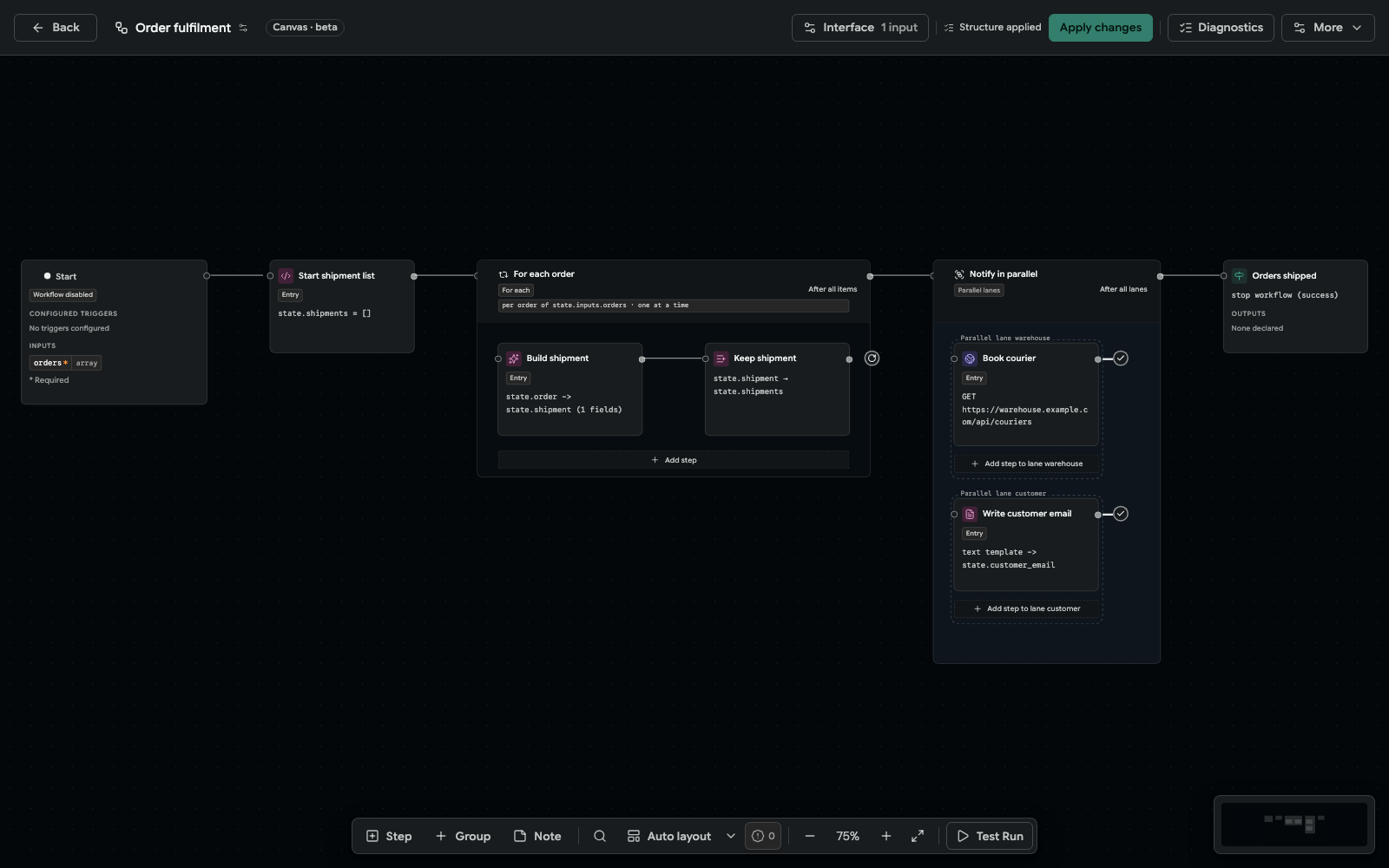
The Order fulfilment example: a For each builds one shipment per order, then a Parallel lanes group books the courier and writes the customer email side by side. Captured on 0.7.27 in a fresh local installation.
The canvas
- Start marks the entry and lists the configured triggers and the declared inputs. Every path ends at a Finish step, Stop · success or Stop · fail. A step with no continuation is a validation issue, never an implicit success.
- A step leaves through named outcomes: Next for most steps, True and False for If, one port per case plus Default for Switch, Approved and Rejected for Approval. Drag from an outcome to the step that runs next, or pick the target under Connections in the step's drawer. A label on a connection names the outcome it carries.
- The On error port below a card routes a failure to another step (a red dashed line). Without it, an unhandled error fails the run; it never follows the Next connection.
- Moving a card never changes what runs next. Auto layout arranges the cards; the zoom controls and Fit to screen (Shift+1) sit in the bottom toolbar next to Test Run.
Add a step
Add step opens a searchable menu. Where you open it decides where the new step goes:
| Where | What happens |
|---|---|
| Add first step on Start, or Step in the bottom toolbar | The step is placed in view; the first root step becomes the entry. |
| An outcome of a card (the + on its port, or Add next step) | The new step is added and already connected to that outcome. |
| An occupied connection | The step is inserted between the two cards. Only a step with a single Next outcome fits there; Groups and loops are listed but disabled, with the reason. |
| Add step at the bottom of a Group, a lane, a For each or a hook | The new step joins that container and is connected to its end automatically. |
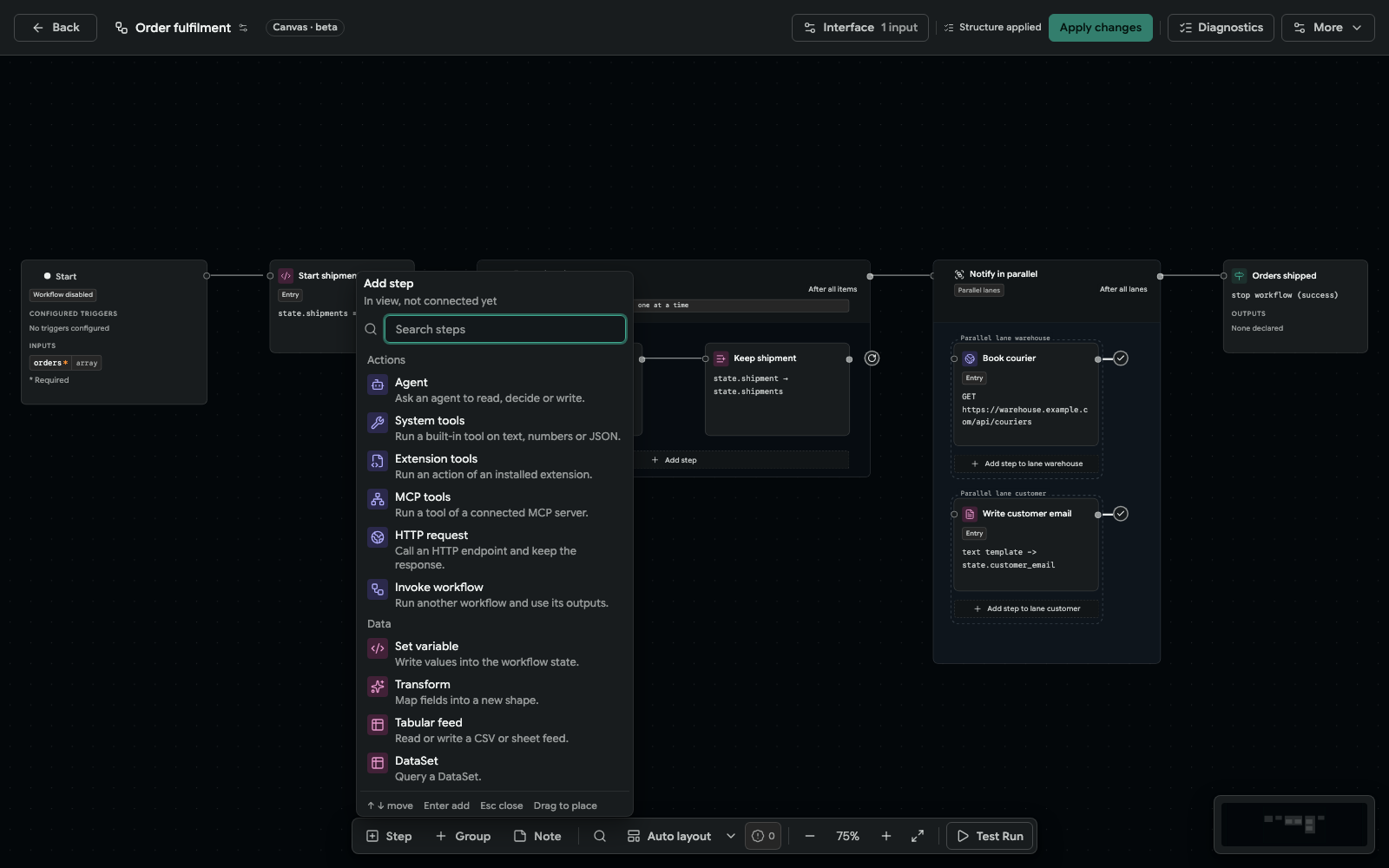
Add step lists every kind with one line on what it does. Type to filter by name, kind or family.
Apply, discard, undo
Structural edits — adding, deleting or moving steps and groups, connections and the entry — stay local until Apply changes saves them as one new revision. Discard changes drops the whole local set. A step's own settings (prompts, mappings, parameters) save from its drawer; a step created in the unapplied set saves with Update new step. Leaving the builder with unapplied work asks before discarding it.
- Undo / Redo are keys only. Ctrl+Z (⌘Z on a Mac) undoes the latest action; Ctrl+Y or Ctrl+Shift+Z (⌘Y, ⌘⇧Z) redoes it. The keys work right after a click on the canvas, a drawer's save button or the Add step menu. Inside a text field they undo typing instead.
- Undo never writes to the server. Undoing an action that is already applied puts its reverse into the unapplied set; the server changes only on your next Apply changes.
- The edit session lives in the browser tab. Your copy, its Undo/Redo history and unsaved form values survive a reload of the same tab; another tab has its own session. Secrets typed into a form are never kept.
- Someone else saved meanwhile. The builder keeps your copy and opens Compare your copy with the server: Keep my version saves yours as a new revision, Accept the server version drops your copy, Decide later keeps working.
More › Show legend opens the legend: every kind with its one-line description and what each kind of connection means. More also holds History, Export YAML and Workflow automation.
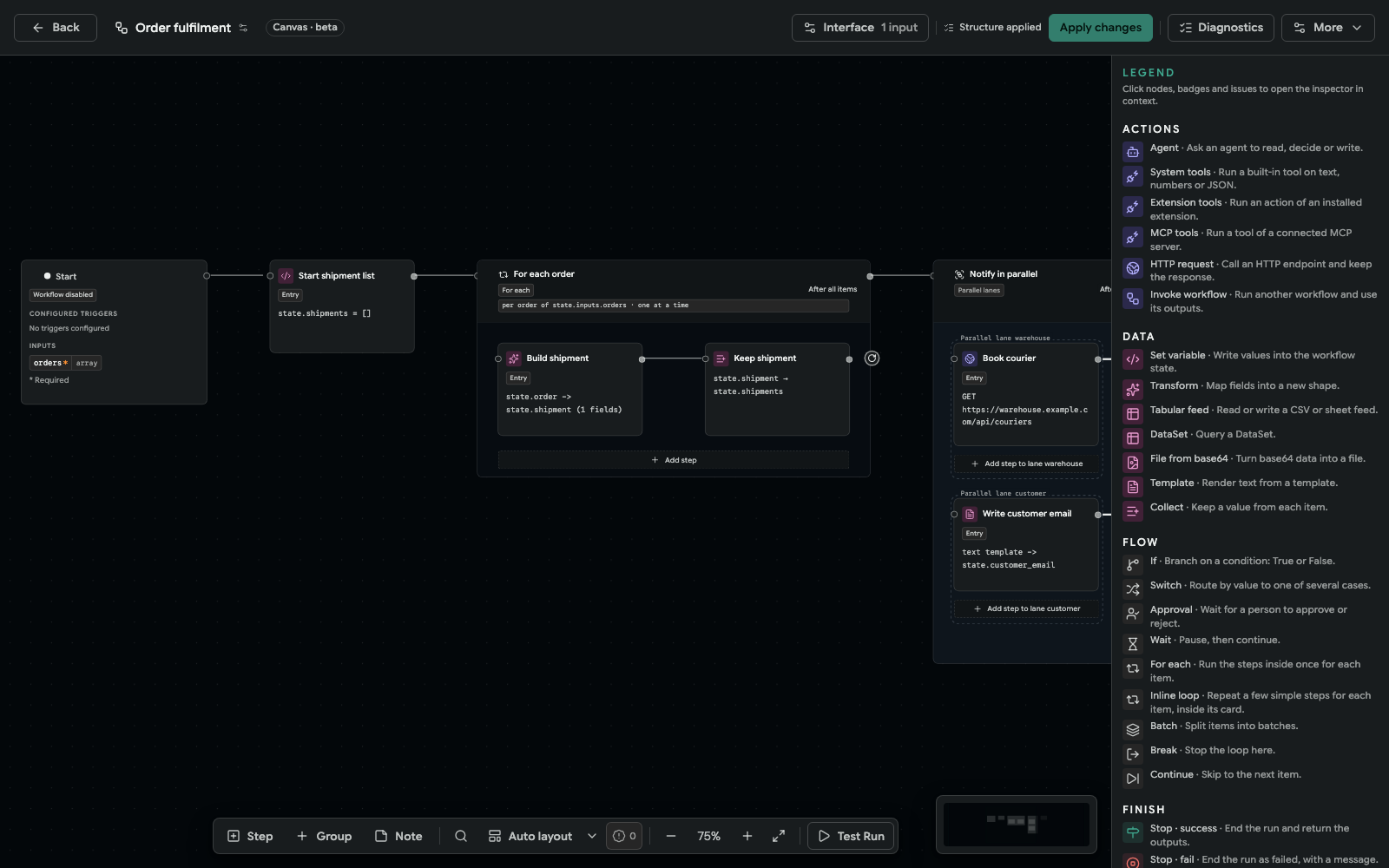
Step kinds
Add step groups the kinds into six families, in this order. The
Workflow Step Kinds reference lists the
stored step_kind names and their key settings.
| Family | Kind | What it does |
|---|---|---|
| Actions | Agent | Ask an agent to read, decide or write. |
| System tools | Run a built-in tool on text, numbers or JSON. | |
| Extension tools | Run an action of an installed extension. | |
| MCP tools | Run a tool of a connected MCP server. | |
| HTTP request | Call an HTTP endpoint and keep the response. | |
| Invoke workflow | Run another workflow and use its outputs. | |
| Data | Set variable | Write values into the workflow state. |
| Transform | Map fields into a new shape. | |
| Tabular feed | Read or write a CSV or sheet feed. | |
| DataSet | Query a DataSet. | |
| File from base64 | Turn base64 data into a file. | |
| Template | Render text from a template. | |
| Collect | Keep a value from each item (inside a For each only). | |
| Flow | If | Branch on a condition: True or False. |
| Switch | Route by value to one of several cases. | |
| Approval | Wait for a person to approve or reject. | |
| Wait | Pause, then continue. | |
| For each | Run the steps inside once for each item. | |
| Inline loop | Repeat a few simple steps for each item, inside its card. | |
| Batch | Split items into batches. | |
| Break | Stop the loop here (inside a For each only). | |
| Continue | Skip to the next item (inside a For each only). | |
| Finish | Stop · success | End the run and return the outputs. |
| Stop · fail | End the run as failed, with a message. | |
| Groups | Group | Steps that belong together. Can become a child workflow. |
| Parallel lanes | A group whose lanes run side by side. | |
| Hook | A place where a project adds its own steps. Offered only to workflow authors, see Hooks. | |
| Canvas | Note | Text and images on the canvas. Saved separately from structure. |
There is no code step. To run your own logic, build it as an extension action and call it with Extension tools; see Custom code.
While a run waits at an Approval, a Wait timer or a child workflow it holds no worker. Every run uses the revision it pinned before its first step, so editing a workflow never changes a run in progress.
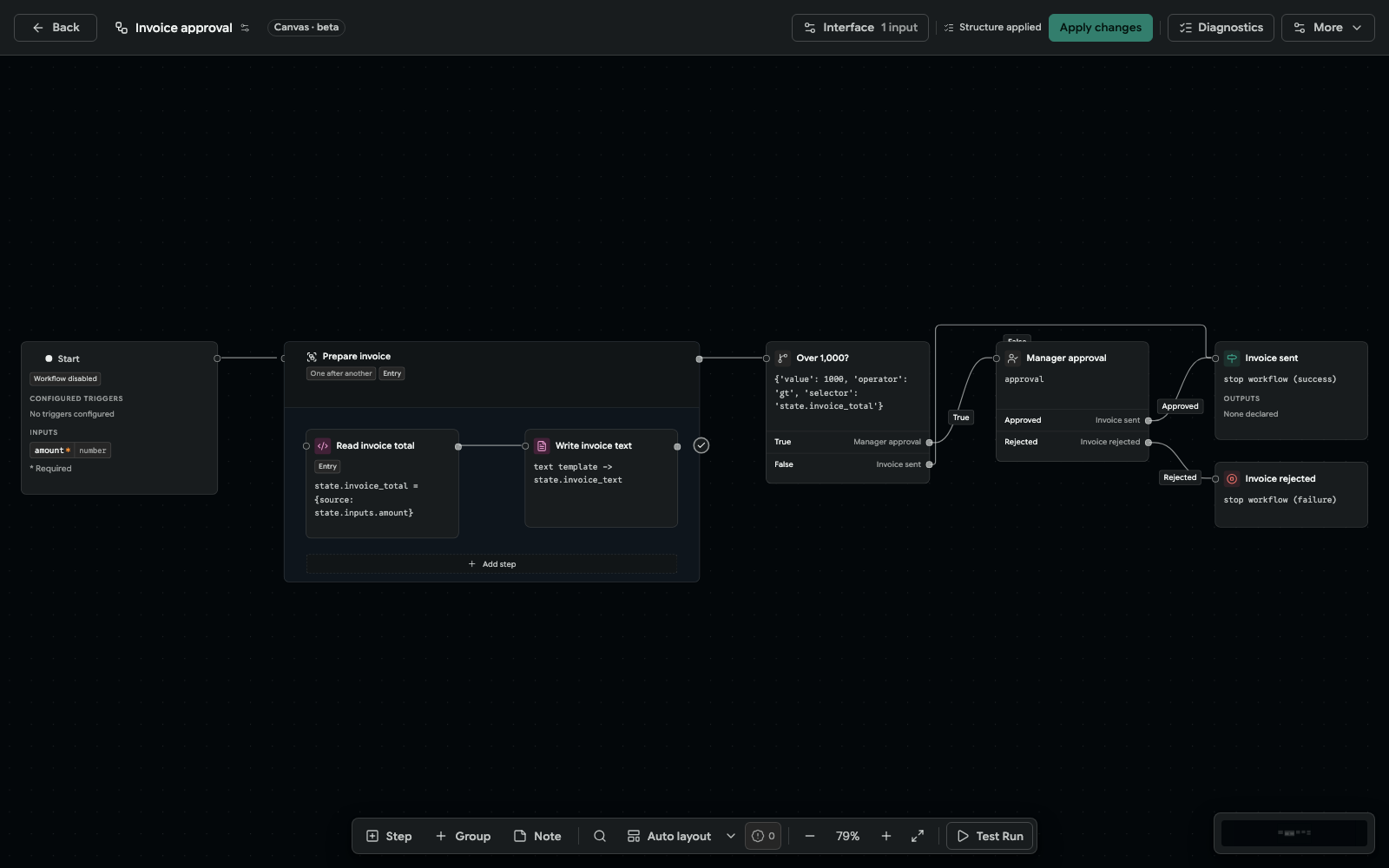
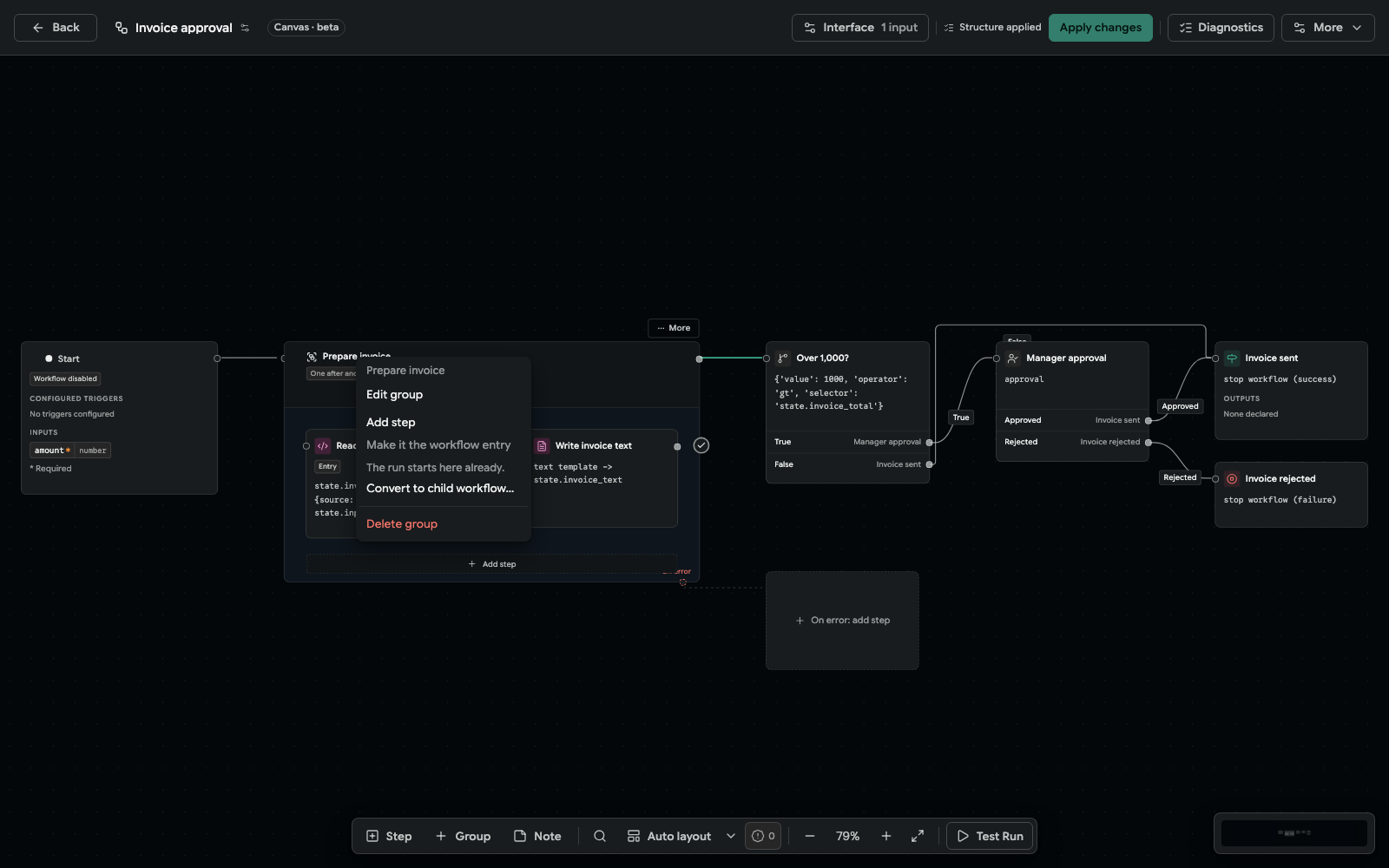
The Invoice approval example: the Prepare invoice Group runs two steps one after another; an If sends large invoices to a Manager approval, whose Approved and Rejected outcomes end at Stop · success and Stop · fail. The False outcome joins the same Invoice sent step.
Groups
A Group runs its steps once, one after another, then continues on its Next outcome. Its header shows One after another.
- Select several steps (or a For each) and choose Group… (⌘⇧G) to wrap them in a new Group.
- Inside a Group a step connects only to steps of the same Group. The last step shows where the Group ends; in the step's drawer, Next step for Next offers End the group here.
- Groups do not nest. A Group may contain a For each.
- Right-click a Group for Edit group, Add step, Make it the workflow entry, Convert to child workflow… and Delete group.
Convert a Group to a child workflow
Convert to child workflow… turns a saved Group into a reusable workflow. Apply or discard pending canvas changes first.
- Enter the child workflow name and ID. The dialog lists the typed inputs the child will receive and the outputs it will return.
- Preview conversion checks the boundary and writes nothing. It names anything that blocks an automatic conversion, such as a variable whose type is unknown, and tells you how to fix it.
- Create child workflow creates the child and replaces the Group with an Invoke workflow step in one transaction. A failed attempt changes neither workflow.
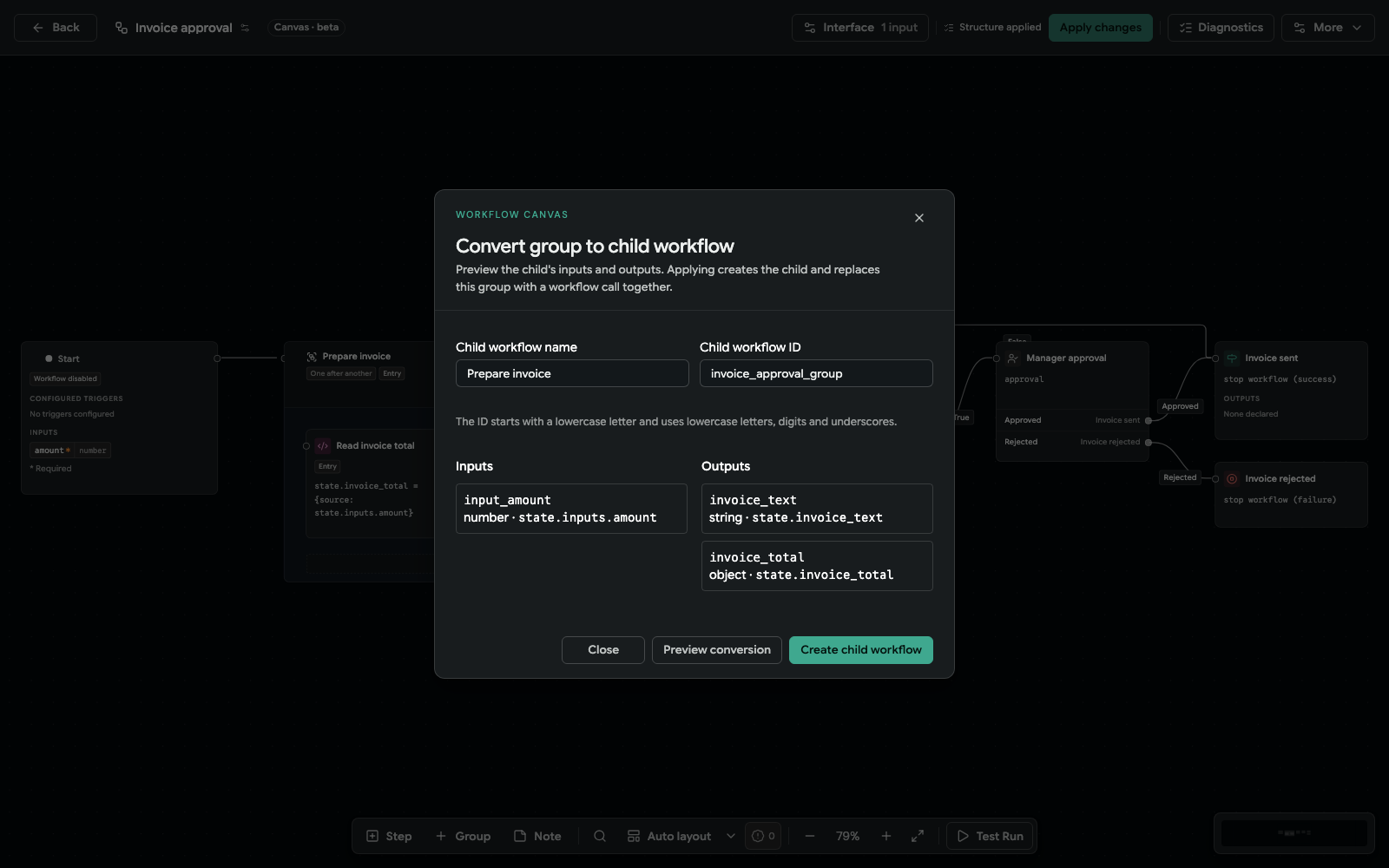
The dialog was closed without creating the child.
Parallel lanes
Parallel lanes is a Group whose lanes run side by side. The group continues on Next when all lanes have finished. Name the lanes in the group drawer (Lane IDs); Lanes running at once limits how many run together (the project's concurrency cap when empty).
- Each lane has its own Add step to lane … and ends at End of the lane.
- A lane holds action and data steps: Agent, the tool kinds, HTTP request, Invoke workflow, DataSet, Transform, Tabular feed, File from base64, Template, Set variable and Batch. If, Switch, Approval, Wait and Stop steps are refused in a lane, and so is an Invoke of a child workflow that waits for an approval.
- Lanes never read each other's results. Steps after the group read all of them.
How lane results merge. Each lane lands only the values it changed, at any
depth. If one lane writes state.result.a and another writes state.result.b,
the step after the group sees state.result with both fields. When two lanes
write the same field, the lane that comes later in lane order wins.
For each and Inline loop
A For each runs the steps inside it once for every item of a list. In its
drawer, set the Loop source (a list in the workflow state, for example
state.inputs.orders), the Item name under which the current item is read
(order → state.order) and, optionally, an Index name for its position
from 0.
- Items run one at a time. With a lanes body, the lanes of one item run in parallel; items never do.
- An empty list runs nothing and the For each continues at once. A single value that is not a list counts as one item.
- At most
FS_DATASET_QUERY_MAX_RUNTIME_ROWSitems (1000 by default) are walked; the run reports when the list was truncated. - The last step inside leads to Next item. Add step at the bottom of the For each connects the new step there automatically.
- A For each sits at the root or in a Group; it does not contain another For each or a Group.
An Inline loop is the same container drawn inside its own card, for a few simple steps.
Three steps exist only inside a For each:
| Step | Effect |
|---|---|
| Collect | Adds one value per item to a list (Add to the end of a list) or under a key of an object. The variable must exist before the loop: create it with Set variable ([] or {}) or as a workflow input. |
| Continue | Ends the current item; the next item starts. |
| Break | Ends the loop now; the workflow continues with what was collected so far. |
In the Order fulfilment example, Start shipment list sets
state.shipments to [], Build shipment maps state.order into
state.shipment, and Keep shipment collects it into state.shipments.
Hooks
A hook is a place on the canvas where each project adds its own steps, for example "before the order is confirmed". It lets one shared workflow — your own, or one an extension installs — be adjusted per project without copying it.
Declare a hook (workflow author)
An administrator declares a hook with Add step › Groups › Hook at the root
of the workflow, before or after a Group or For each. The Hook kind is offered
only when the installation runs in development mode
(ENVIRONMENT=development); a production installation fills hooks but does not
declare new ones. In the hook's drawer the author describes the place, the
inputs it receives, which of them its steps may change, and which output-only
fields they may add.
Fill a hook (project)
Hooks are filled per project. A workflow with hooks shows a project picker in the builder header with the projects the workflow is linked to; link the workflow on its Projects tab first. Until a project is chosen, the hook's Add step is disabled and says why.
- Choose the project in the builder header.
- Use Add step inside the hook frame exactly as inside a Group: any kind, including an Invoke workflow step to run a workflow of your own, a Group or a For each. The last step leads to End of the hook.
- Apply changes.
A workflow installed by an extension is read-only (View workflow (read-only)), but each project can still fill its hooks there, and extension updates keep them in place.
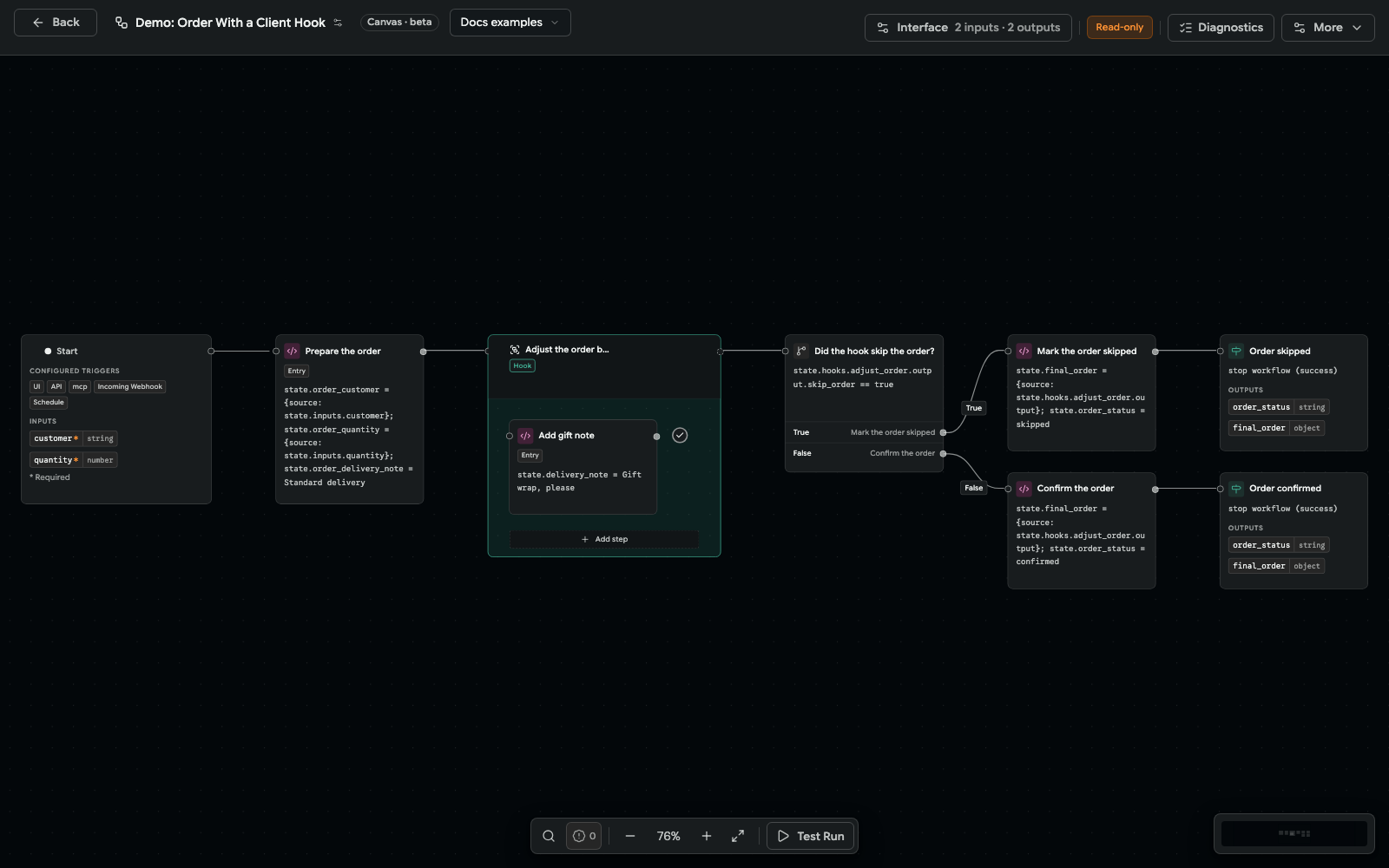
The Showcase extension's "Order With a Client Hook" demo workflow, read-only, with one step added to its hook in the Docs examples project. The rest of the workflow cannot be changed.
The hook's header opens its drawer. Smart setup explains what the hook receives, what its steps may change or add, and when it runs; Clear the hook removes all of its steps at once (as one unapplied change that Undo or Discard brings back). Test Run runs only the hook's steps on typed inputs.
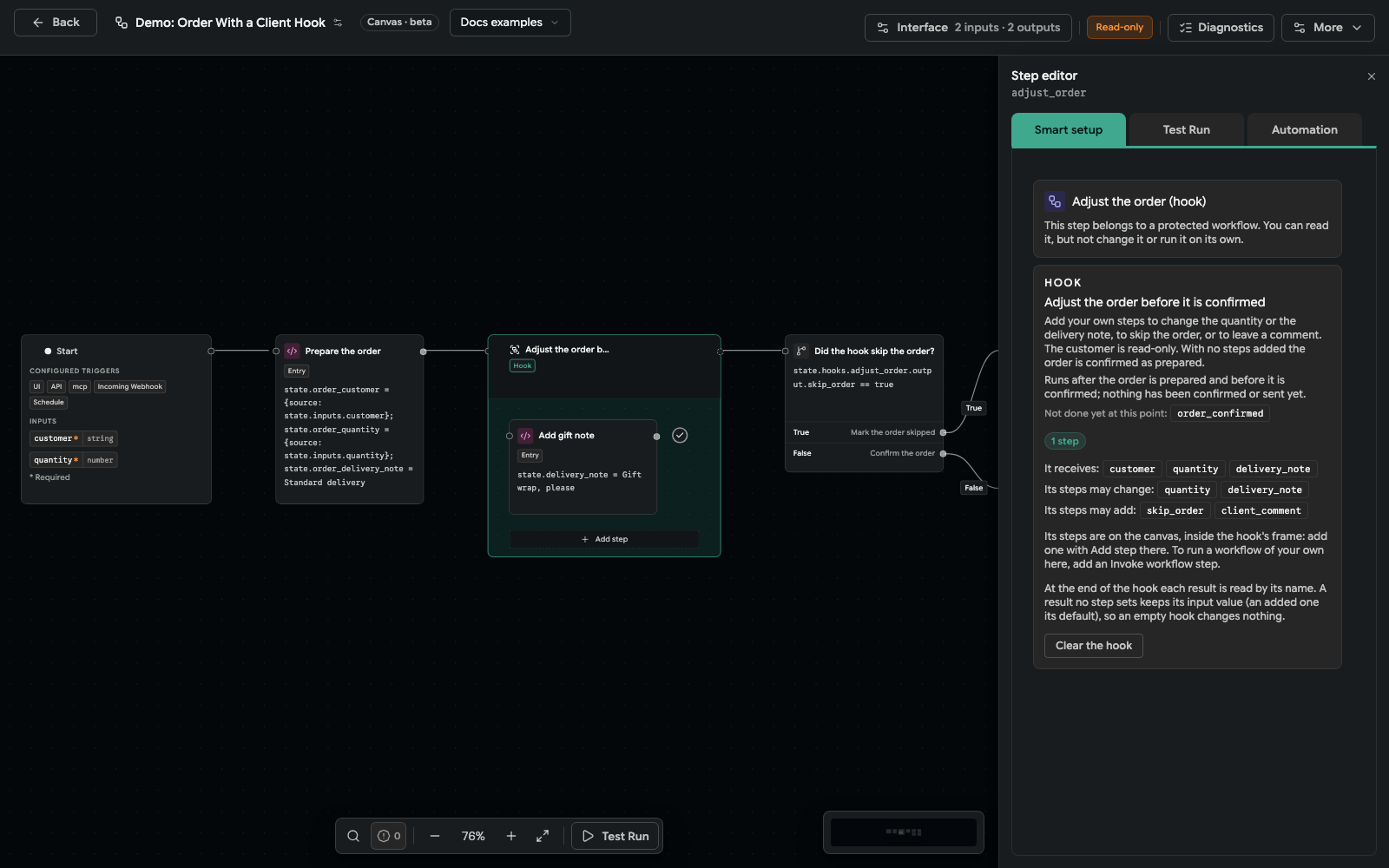
At run time:
- An empty hook changes nothing. Its inputs pass through unchanged (an output-only field gets its declared default) and the step succeeds.
- With steps, each result is read by its name at the end of the hook: a result
no step set keeps the input of that name. The values are checked against the
hook's contract and published at
state.hooks.<hook_id>.outputfor the steps after it. The author's own variables never change. - A run uses the hook steps that were saved when it started.
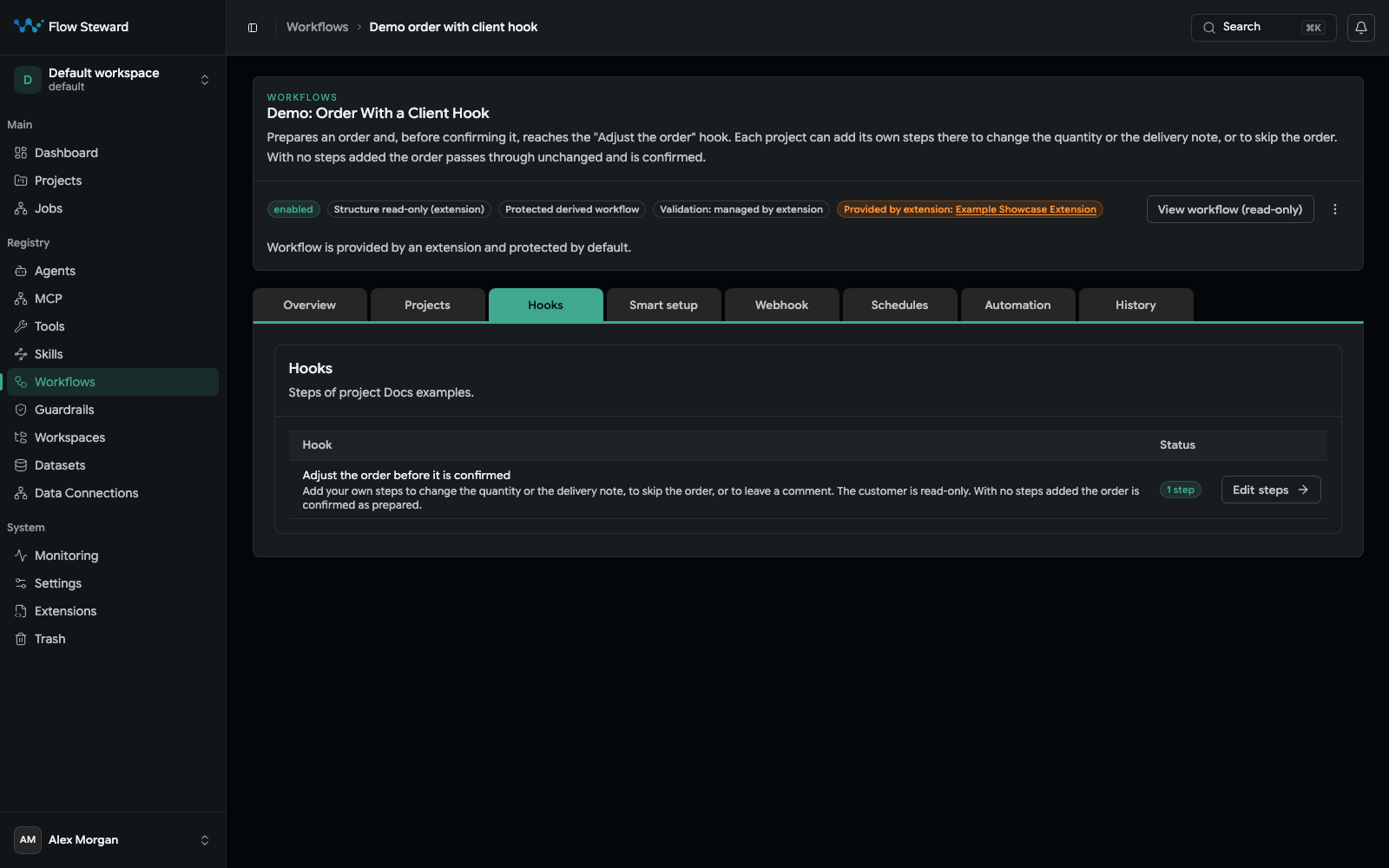
Behind the canvas, a project's hook steps live in a hidden workflow of that project, created by the first step you add. The workflow page's Hooks tab lists every hook with the number of steps it holds in the chosen project and an Edit steps link.
Files returned from a workflow
A step that saves a file — File from base64, an HTTP request whose response is saved as a file, an extension action whose output is a file, or an Invoke workflow step's returned file — shows Return from workflow in its drawer: Make the result available to the calling workflow and in the run results.
- Ticking it adds the file to the workflow's Outputs › Returned files under
a key made from the result variable (
state.invoice_pdf→invoice_pdf), shown as Output: invoice_pdf. Every run returns its file through the same key, whatever the file is called, so a parent's mapping never has to change. - A list of files is returned whole. Two steps, lanes or branches never replace each other's returned file.
- Unticking removes the output; the file stays usable inside the workflow.
- A parent workflow maps the file in its Invoke workflow step's Returned files mapping. Job Details list the file's name, content type, size and SHA-256.
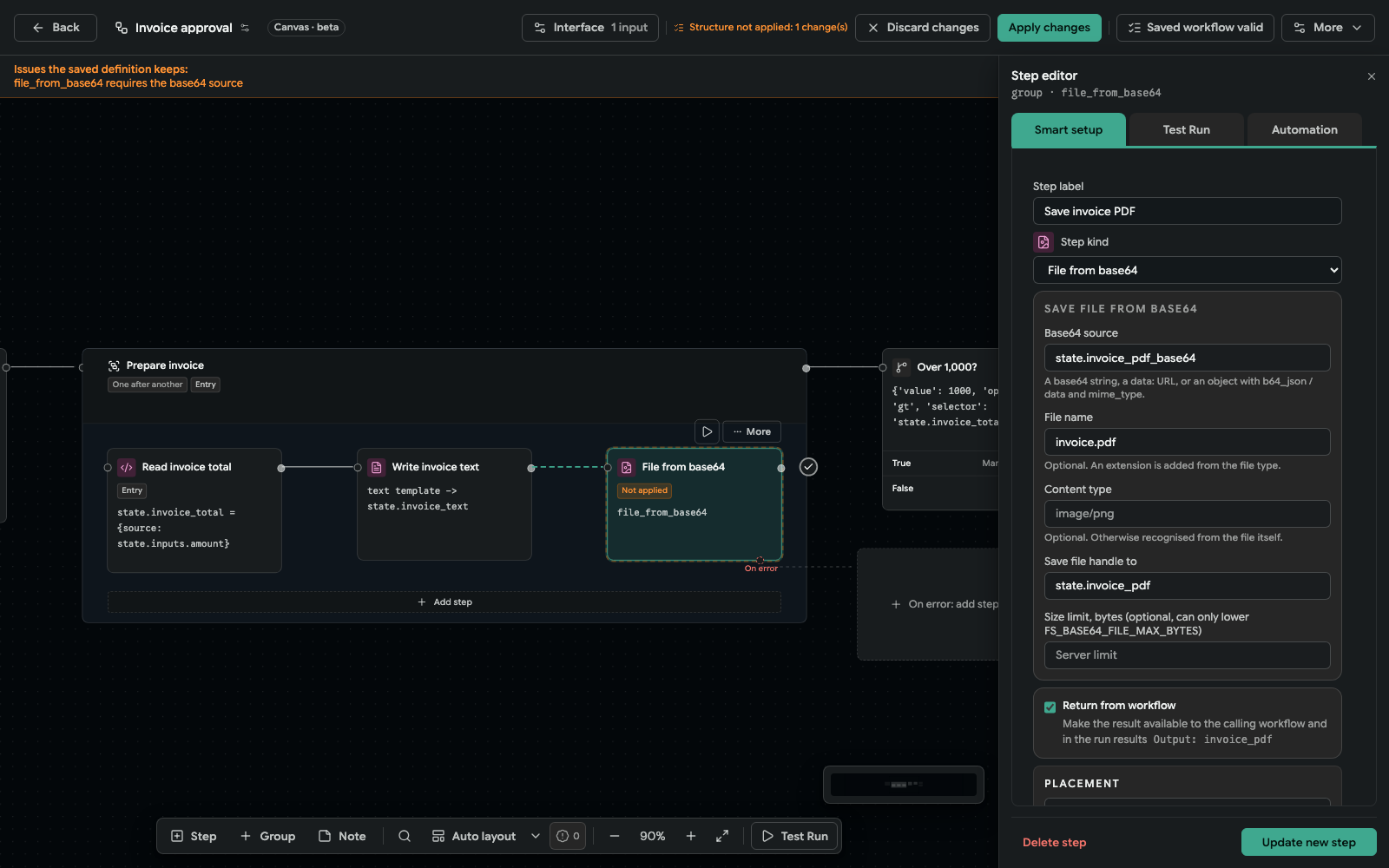
Added with the Group's bottom Add step, the file step is already connected to the end of the Group. The change was discarded after the capture.
The workflow page
The workflow page shows the header actions (Enable/Disable, Open
builder or View workflow (read-only)) and these tabs. ?tab= in the
address opens one directly.
| Tab | What it holds |
|---|---|
| Overview | Run statistics and quick links (jobs of this workflow, builder, linked projects, Test Run). |
| Projects | The projects the workflow is linked to. A workflow runs only in a linked project; select projects and Save project bindings. |
| Hooks | Only when the workflow declares hooks: each hook and its steps in the chosen project. |
| Smart setup | Status, the workflow interface, trigger channels, inputs and outputs. |
| Webhook | Only when the Incoming Webhook channel is on: the webhook URL, credential and payload mapping. See Incoming Workflow Webhooks. |
| Schedules | Only when the Schedule channel is on: schedules per linked project. |
| Automation | Event rules that resume, approve, reject or cancel a job, or send a notification. |
| History | Every saved revision with its author and time. Open a revision to compare it with the one before and Restore it as a new revision. |
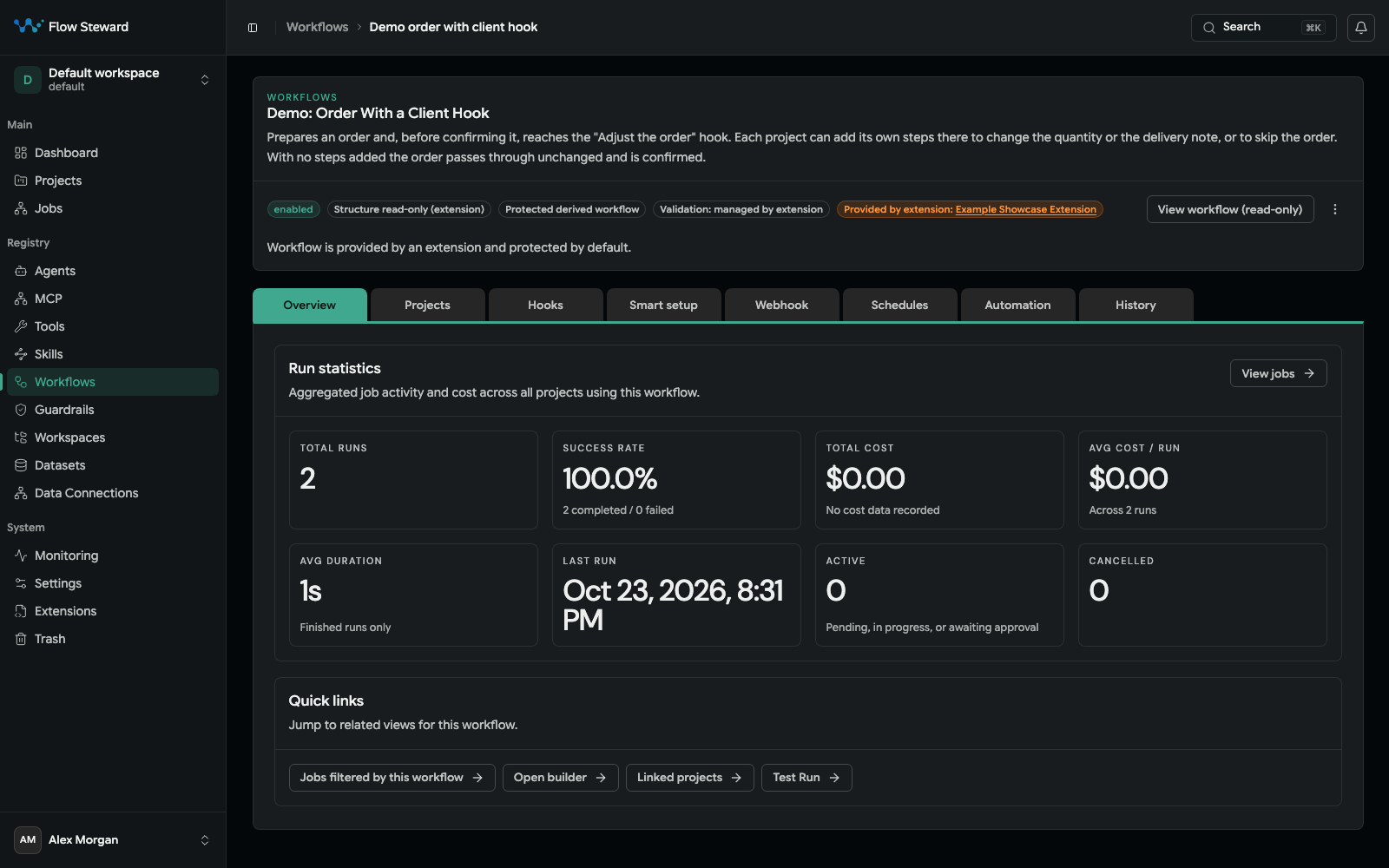
A workflow with hooks and both the webhook and schedule channels on shows all eight tabs. A workflow without them — like the Order fulfilment example — shows Overview, Projects, Smart setup, Automation and History.
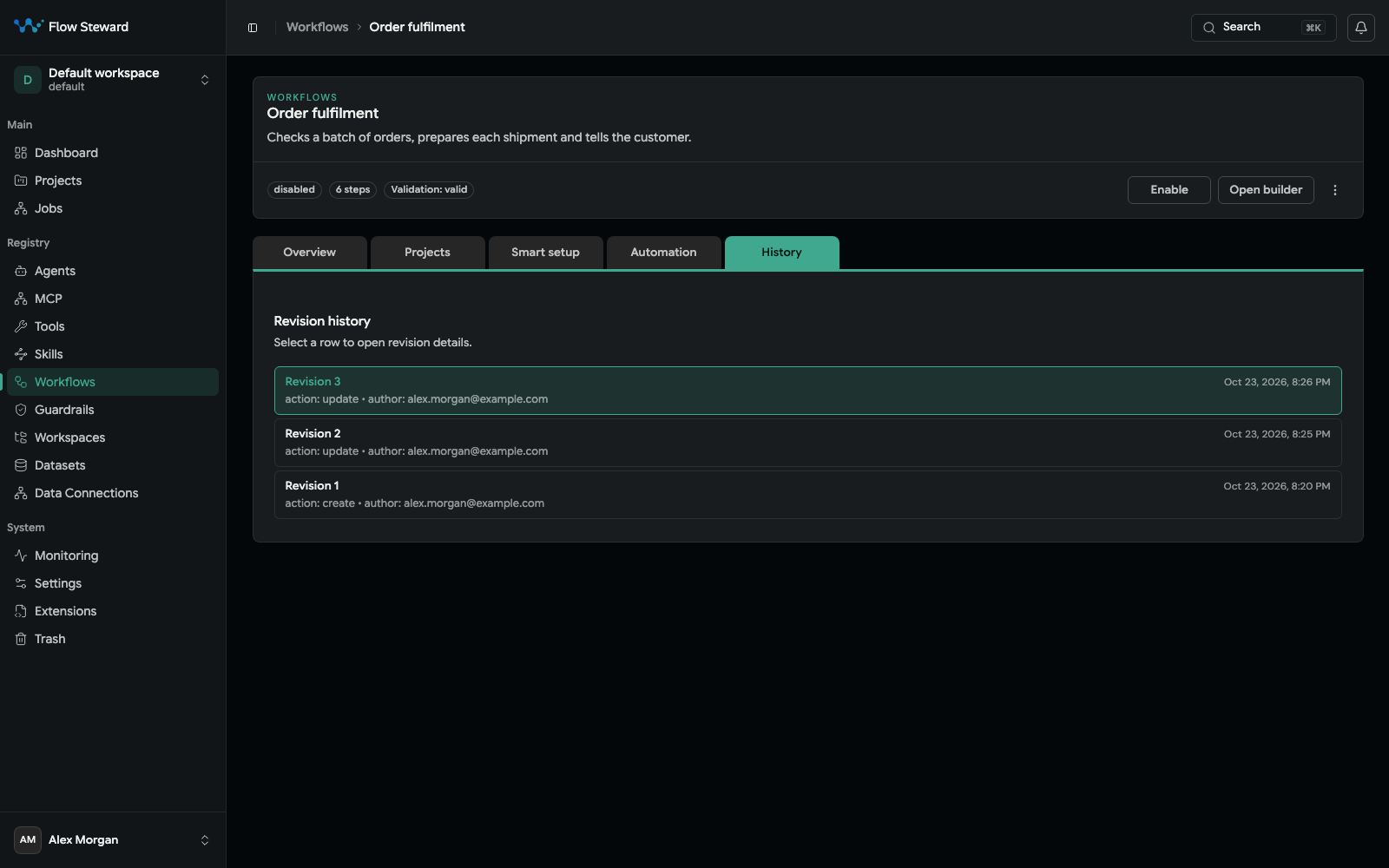
Restore takes back the steps, groups, connections, settings, name and description of the chosen revision; it keeps whether the workflow is enabled, its notes, schedules, webhooks, automation rules and hook steps as they are now. History is never rewritten: Restore always adds a new revision.
Related pages
- Workflows — creating, running, testing, importing and exporting workflows.
- Workflow Step Kinds — stored kinds and their settings.
- Workflow and Extension Catalogs — ready workflows, extensions and MCP servers.