Workflow and Extension Catalogs
Flow Steward has three catalogs of reusable pieces: Workflow Catalog for ready-made workflows, Extension Catalog for integrations and capabilities, and the MCP catalog of curated MCP servers. They can contain workflows and extensions published by Flow Steward and community contributors. Workflows can solve real operational tasks; demo content is only one possible kind of entry. Available entries grow as publishers add releases.
| Surface | What you get | Where to open it |
|---|---|---|
| Workflow Catalog | A reusable workflow, including the child workflows it calls when included in its bundle. | Workflows › Catalog tab. |
| Extension Catalog | An installable version of an extension that adds tools, providers, data connectors, or other declared capabilities. | Extensions › Catalog tab. |
| MCP catalog | A curated MCP server you connect with your own credentials. | MCP › Catalog tab. |
| Local workflows | The workflows already created or imported into your installation. | Workflows › Workflows tab. |
| Installed extensions | Your installation's extension configuration, enabled state, and health. | Extensions, using its installed-extension controls. |
All three catalogs filter by category, search, and mark recently added entries New. The Extension and MCP catalogs sort A–Z or Recently added and switch between a grid and a list.
A catalog listing and a local installation are different states. Creating a workflow from the catalog makes local drafts; installing an extension makes its release available locally. Both still need their own setup and validation.
Use a ready-made workflow
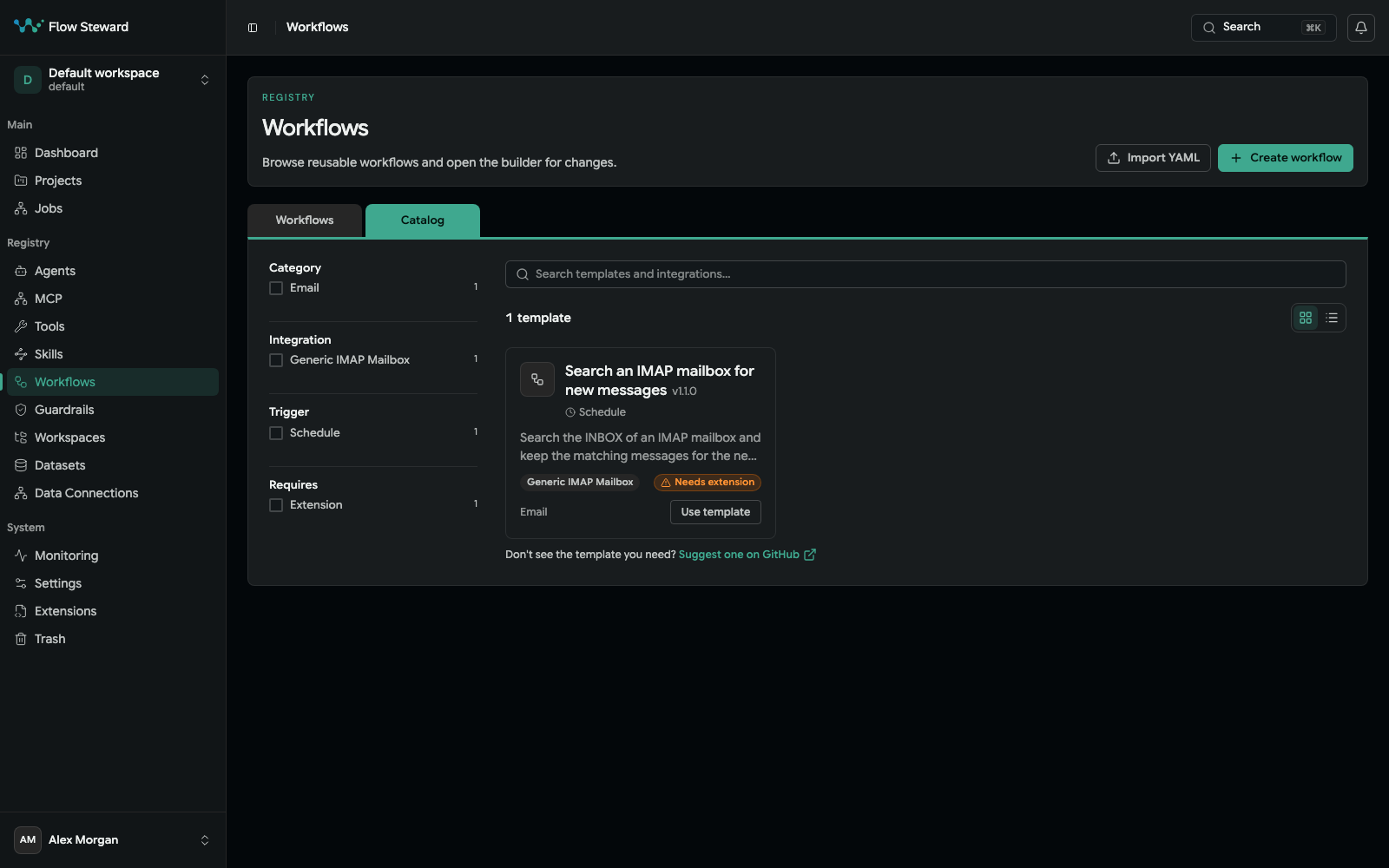
The Workflow Catalog of the official index on 2026-10-23. The card is marked Needs extension because its IMAP extension was not installed.
Administrators create workflows; operators can browse the configured catalog.
- Open Workflows and the Catalog tab.
- Search or filter the catalog and open an entry. A card says Needs extension when an extension it uses is not installed yet.
- Read its purpose, trigger types, integrations, setup requirements, compatibility, and included child workflows.
- Choose Use template.
- Choose the target project and workflow ID. Review the dependency preflight; install required extensions and map connections or other references as needed.
- Resolve existing-ID conflicts by selecting another ID or an offered reuse decision. Check which child workflows will be created or reused.
- Choose Create draft (or Create N drafts for a bundle with children), then View workflow.
- Review the local drafts, validate their contracts, configure credentials and connections, and check project bindings, triggers, and external effects.
- Enable only the reviewed workflows needed for execution, then run a controlled administrator Test Run and inspect the job. A disabled workflow cannot run; test mode can still make real external calls.
Catalog workflows are independent copies. Later catalog changes do not update, merge, or overwrite your local workflow. To adopt a newer version, create and review a separate draft and deliberately move to it. See Workflows and Workflow Export and Import.
You can also choose Create workflow to start from scratch, or Import YAML for a workflow that has not been published in a catalog. Installing demo data is not a prerequisite.
Install an extension from the catalog
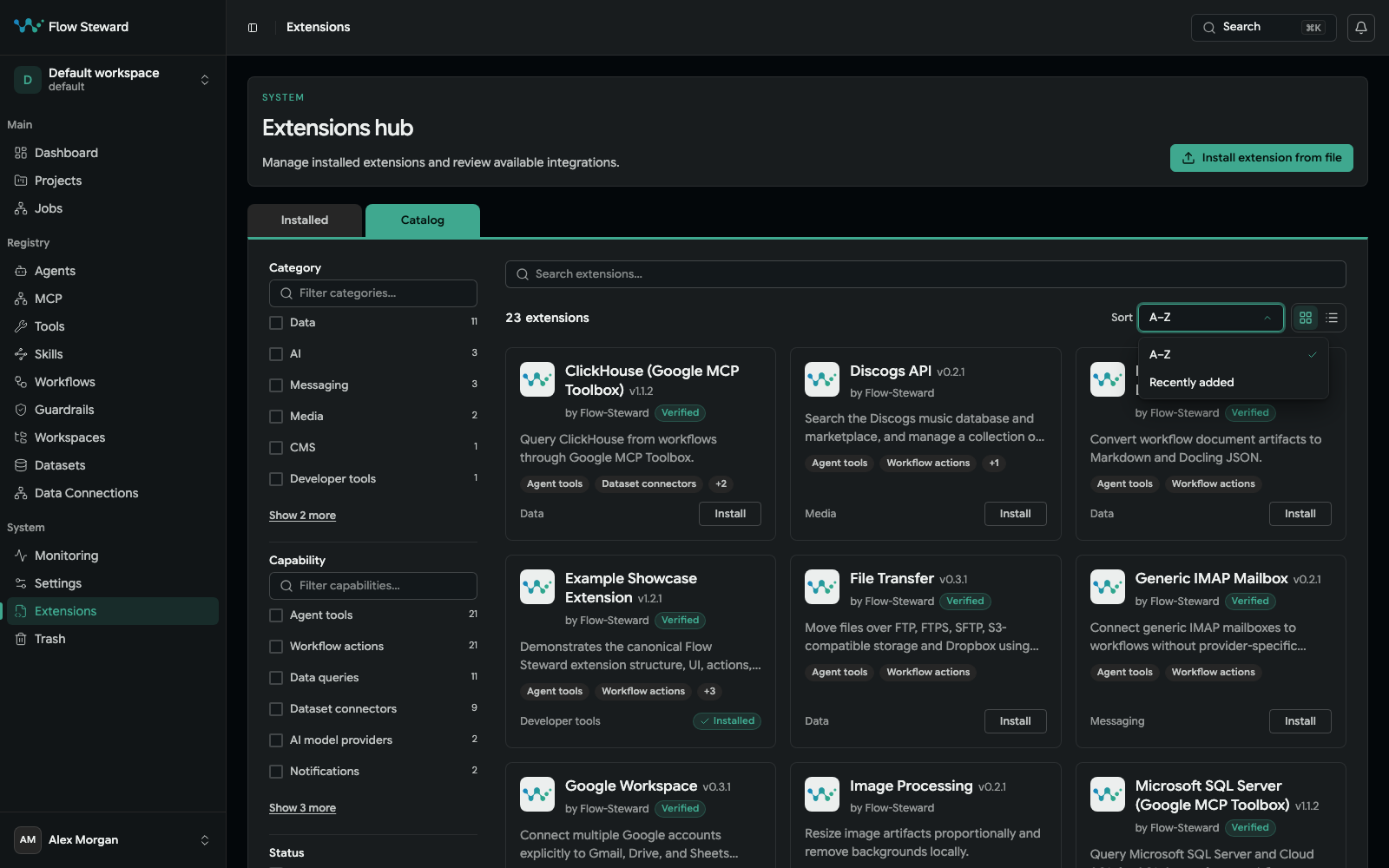
- Open Extensions and the Catalog tab, and find an extension. An extension without its own icon shows a package icon.
- Open its entry and review the version, capabilities, requested permissions, setup instructions, publisher information, and compatibility.
- As an administrator, choose Install. If browser authority approval is requested, review the listed impact before confirming.
- Open the installed extension and configure its required credentials, connections, and callbacks.
- Enable it when its configuration is ready, run Health, and test a suitable low-risk action or connection.
The server verifies the selected release's identity, byte size, and SHA-256 before using the existing extension installer. A catalog entry does not mean that its credentials, connections, or runtime health are already configured.
For a newer catalog release, the listing shows Update available and the entry offers Update to X. Review additional permissions and data migrations before updating. Updates require administrator authority; they are not automatic. A disabled extension stays disabled after an update. Same-version reinstallation and downgrades through the catalog are refused. See Extensions and the Extension Operator Guide.
Connect an MCP server from the catalog
- Open MCP and the Catalog tab.
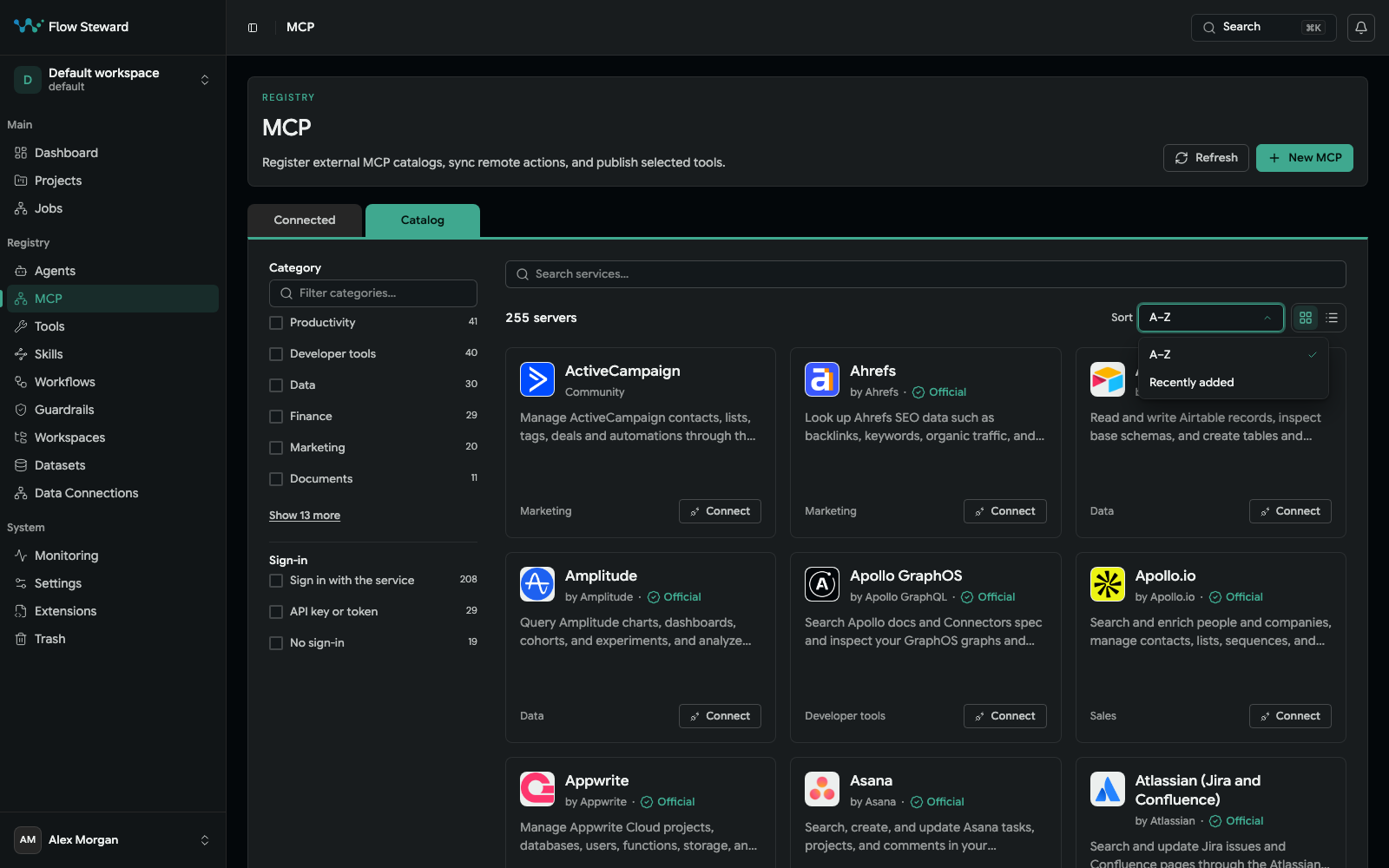
- Filter by category or sign-in type, or search. Each server shows who publishes it: Official when the vendor publishes it, Community otherwise.
- Choose Connect and follow the connection form with your own credentials. A connected server shows Connected in the catalog.
The catalog never changes connectors you already have. See Tools and MCP and External MCP Catalogs.
Share your work
Catalog contributions are reviewed through the catalog repositories. Uploading YAML into your own Flow Steward instance creates a local workflow; it does not publish it to everyone. Follow each repository's current submission instructions.
Contribute a workflow
- Give the workflow a readable title, a description of at least 40 characters, and a semantic version.
- Export it from the workflow's ⋯ menu with Export YAML, or Export YAML with child workflows when it calls other workflows, so the bundle is complete. Read the file and remove private data in Flow Steward before exporting again.
- Add the file to the catalog repository as
workflows/<category>/<workflow_id>.yaml, choosing a category from itscategories.json. - Open a pull request and fix what the Validate submission check reports. The repository rebuilds its index after the merge; do not edit the index.
- Publish a later version as a new file with a higher version; published files never change.
Step-by-step guide: Publish a Workflow Template. The official Workflow Catalog instructions are the source of truth.
Contribute an extension
Keep the extension in its own public repository with extension.yaml at the
root, an icon.png logo and runtime.contract_version: extension_host_v2.
Validate it, then publish a GitHub Release tagged v<version> with the
archive. For the first listing, open a pull request in the
official Extension Catalog
that adds one file, extensions/<extension_id>.yaml, holding your repository
URL. Later versions need only a new tag: the catalog checks listed repositories
every five minutes. Its generated index and release records are never edited by
hand.
Step-by-step guide: Publish an Extension. Start building with Build An Extension or the Extension Authoring Skill.
Report a problem
Found a bug in Flow Steward itself, or missing a feature? See Report a Bug or Request a Feature. To fix it yourself, see Contributing Code.
Configure a catalog or troubleshoot availability
Standard configuration points to the official workflow and extension indexes.
Administrators can choose their own HTTPS indexes through
FS_WORKFLOW_TEMPLATE_CATALOG_URL and FS_EXTENSION_CATALOG_URL; an explicitly
empty value disables the corresponding catalog. Apply configuration changes to
the owning application processes and restart them as required by your deployment.
The two catalogs are independent. Their server-side indexes are cached per process for one hour; the next request refreshes an expired index. A refresh failure can serve a previously cached index marked stale. There is no background catalog refresh service in the application. Index refreshes do not install artifacts or modify local workflows or extensions.
If an expected entry is absent, check your configured index, filters, catalog availability, and whether the release has been published. If creation or install is blocked, inspect compatibility, administrator permissions, artifact verification, and dependency or setup errors. When a catalog is unavailable, workflow creation from scratch, manual YAML import, and extension installation from file remain available. See the API Reference for the corresponding internal routes.