Users, Roles, And Access
Access control is split between human users and automation identities.
Human users sign in to the UI. Service accounts and machine tokens are for automation, MCP clients, and integrations.
Roles
| Role | Level | Typical responsibility |
|---|---|---|
viewer | 1 | Read permitted dashboards, jobs, projects, and reports. Viewer does not have Registry access. |
operator | 2 | Read the Registry and run permitted approvals, acknowledgements, retries, cancellations, and workflow triggers. |
admin | 3 | Author workflows and registry objects; manage users, accounts, service accounts, tokens, settings, and high-risk configuration. |
Service accounts act with operator-level intent by default. System actors are admin-level internal principals.
Add a user
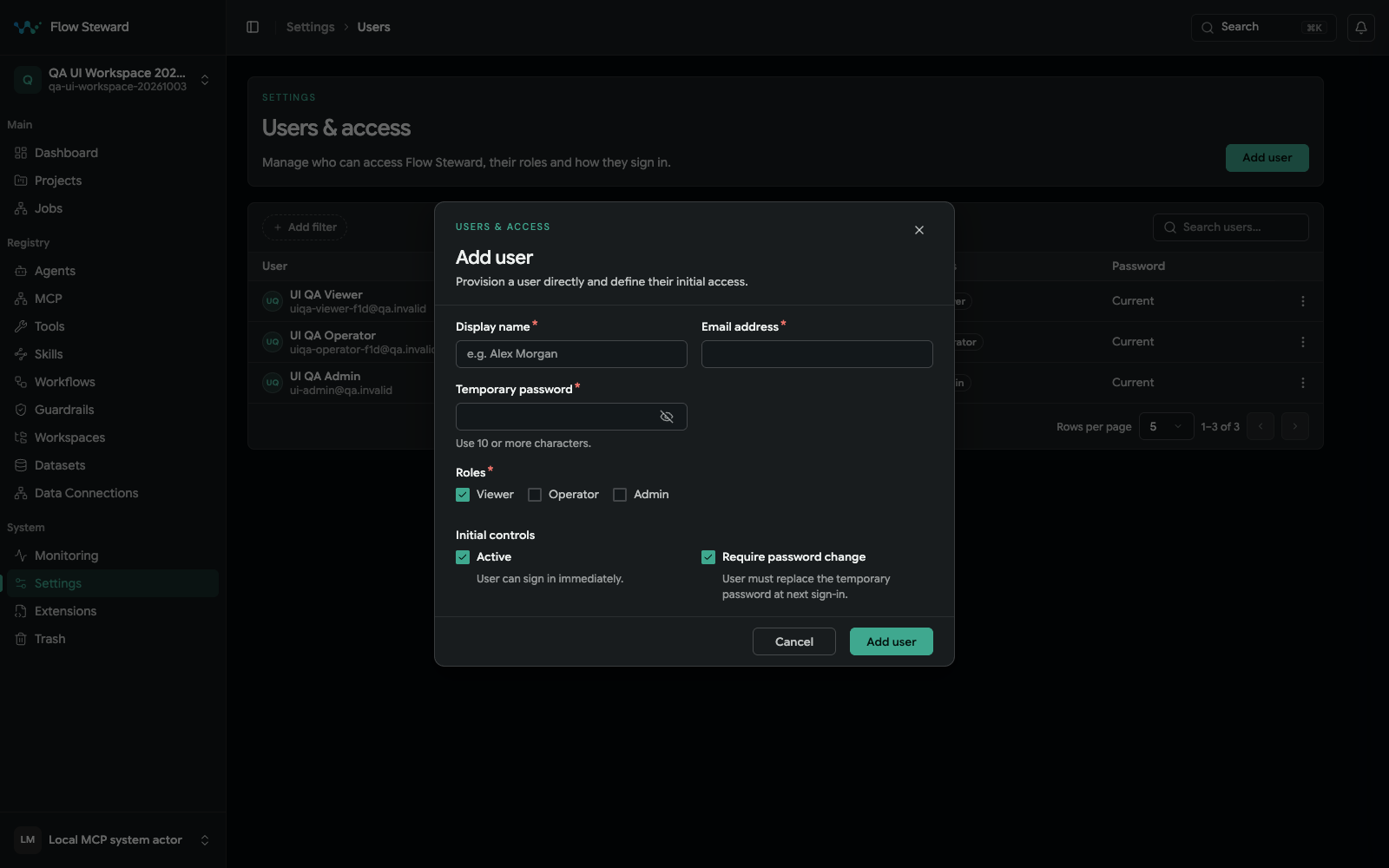
The Add user dialog. The screenshot contains blank credential fields and does not create an account.
- Open
Settings. - Open
Users. - Create a new user.
- Enter email and display name.
- Choose roles.
- Set a temporary password of at least 10 characters.
- Enable Require password change when the user must change that temporary password on the next sign-in.
- Save.
The browser Add User form has no account-ID field. Managed-account scoping is a
separate API/CLI concern, not an alternative browser step. After creation, use
Set temporary password for credential replacement and Require password
reset for the independent next-sign-in flag. Use Unlock after lockout
conditions are resolved.
Change user roles
- Open
Settings. - Open
Users. - Edit the user.
- Select roles.
- Save.
Give users the lowest role that lets them do their work. Most people should
start as viewer or operator; reserve admin for platform owners.
Personal access tokens
Use a personal access token when a human user needs an API or MCP credential tied to their account.
Typical uses:
- local MCP sessions;
- personal automation scripts;
- one-off integration testing.
Treat PATs like passwords. Rotate them when they are shared accidentally, no longer needed, or used from an untrusted environment.
Create a PAT under Settings > Account > Personal tokens. Set a short useful
expiry, choose only the required scopes, and narrow project/workflow allowlists
when possible. Copy the token once into the client's secret store. Verify it
with a read-only request, then revoke the old token after rotation.
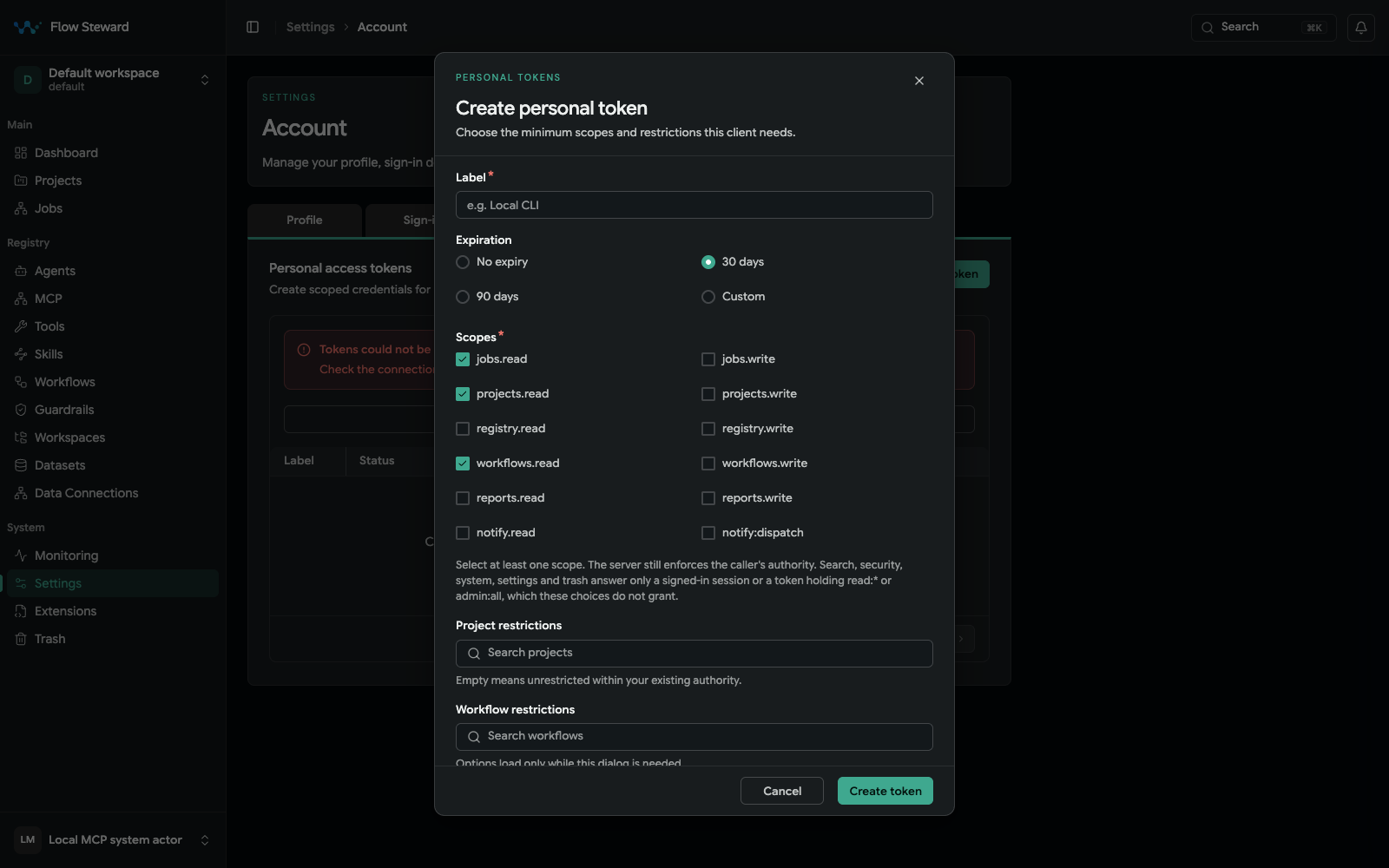
The token form opened, but the fixture also reported that its existing token list could not be loaded. No token was created and no secret was revealed.
For local Codex MCP sessions, export:
export MCP_BEARER_TOKEN=<platform_pat_or_machine_token>
Service accounts
Use service accounts when the actor is not a person.
- Open
Settings. - Open
Service Accounts. - Enter a service account key, display name, and description.
- Select scopes such as
jobs.read,jobs.write,projects.read,registry.read, orworkflows.write. - Limit allowed project IDs and workflow IDs when possible.
- Create the service account.
- Select it and create a token.
- Set token scopes and expiration.
- Copy the token once and store it in the integration secret store.
Revoke tokens when an integration is retired. Delete tokens only when you are sure no audit or rollback workflow needs to refer to them.
Account settings
Users can manage account-level preferences such as timezone and email change from the account settings pages. Email change always requires verification and working email delivery. An unconfigured mail service prevents the request with HTTP 503; a delivery failure prevents completion rather than bypassing verification.