Tools And MCP
Tools are executable capabilities. MCP catalogs are one way to bring external tools into Flow Steward without hard-coding them into the core platform.
This page is about registering external MCP catalogs in the Flow Steward UI. The built-in Flow Steward MCP server, used by IDEs and agents that call Flow Steward itself, is covered in Connect An AI Client With MCP and MCP Reference.
Add an MCP connector
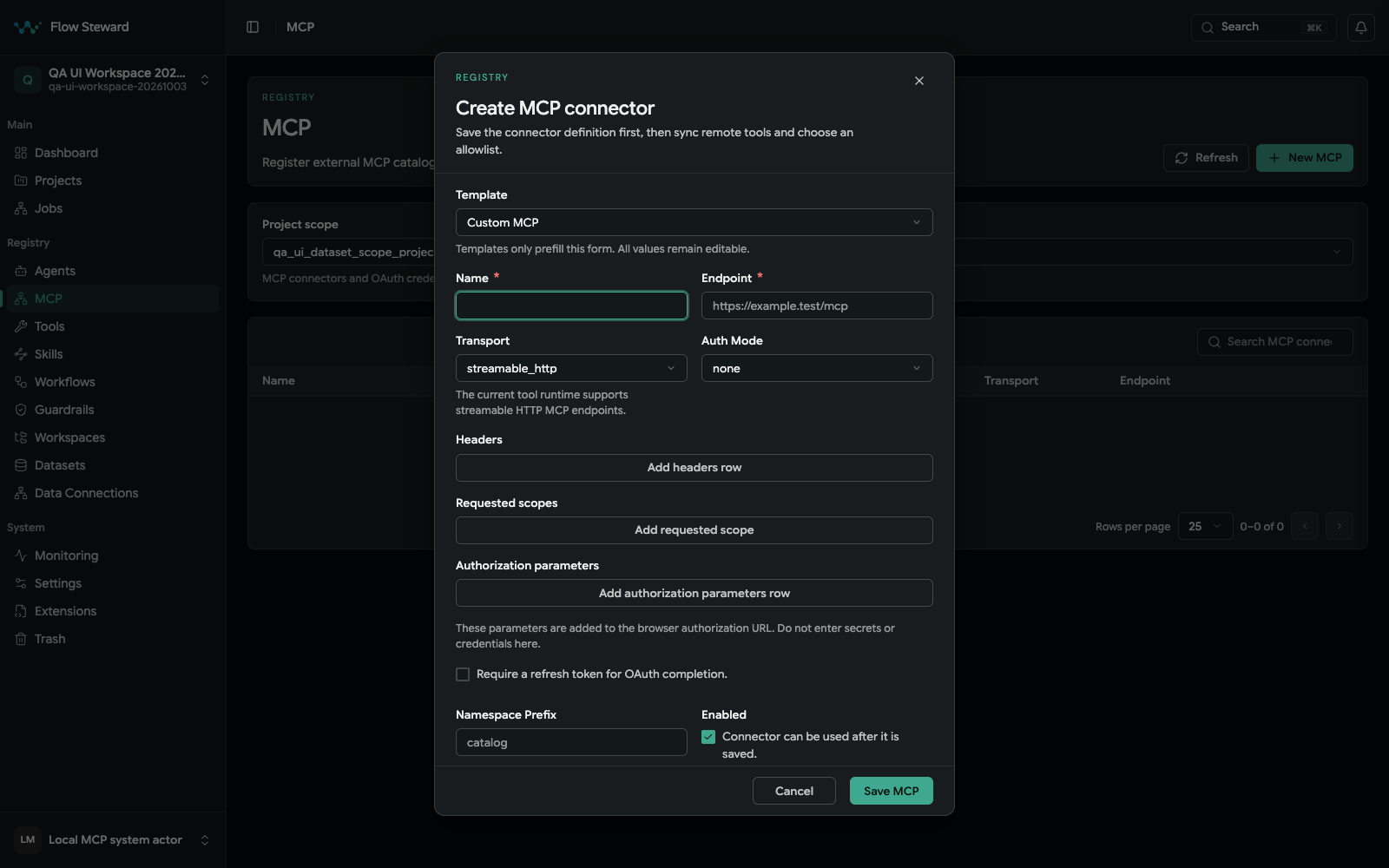
The blank connector form. No endpoint or credential was submitted for this screenshot.
- Open
Registry. - Open
MCP. - Select the required
Project scope; credentials and projected tools are isolated to that project. - Choose
+ New MCPand enter a name and endpoint URL. - Keep transport as
streamable_http. - Choose
none,bearer,api_key, oroauth2authentication. - Add each custom header as a key/value row. Store secrets through the credential controls; do not paste a JSON object into the header UI.
- Add a namespace prefix when tool names need to stay distinct.
- Leave
Enabledon when the connector should be usable after save. - Save the MCP connector.
For OAuth, review scopes and authorization parameters, complete the provider grant, and confirm whether a refresh token is required. Reconnect when the endpoint, client binding, credential revision, or required scopes change.
Sync and health-check MCP
After saving a connector:
- Click
Syncto discover remote tools. - Click
Healthto verify the endpoint can be reached. - Open the connector detail page.
- Review discovered tools.
- Allowlist only the tools that workflows or agents should be able to use.
The list page shows connector status, transport, endpoint, allowed tool count, and last sync time.
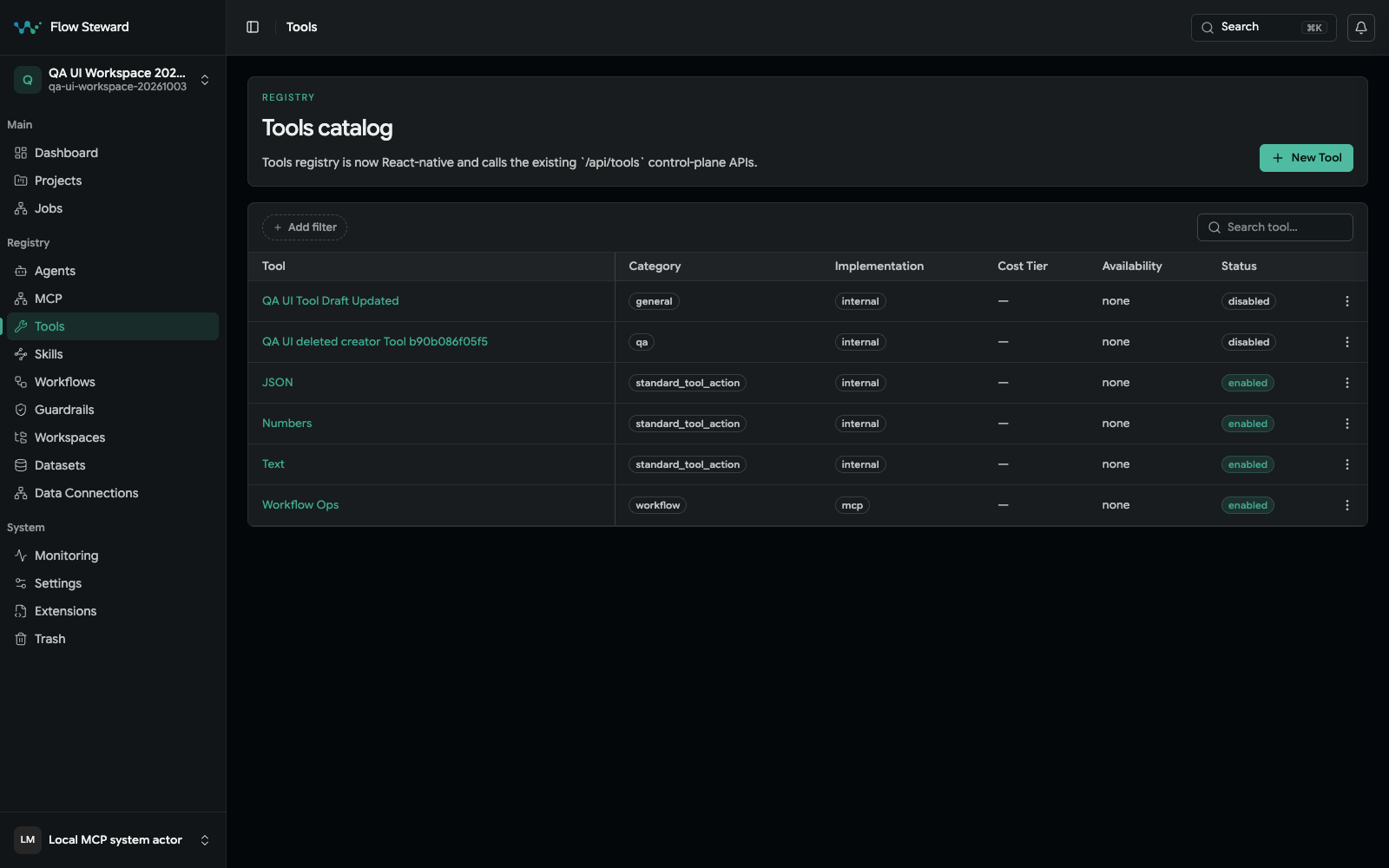
Registered tools in the isolated synthetic fixture; the image does not prove a remote MCP sync or health check.
When to use MCP
Use MCP when a capability is external to Flow Steward but should be available to agents or workflows through a structured tool contract.
Good examples:
- issue-tracker tools;
- incident-management tools;
- internal deployment tools;
- remote dataset or schema tools;
- provider tools exposed by another service.
Tool safety checklist
Before exposing a tool to workflows:
- Confirm the endpoint belongs to the expected service.
- Use the narrowest token or header possible.
- Add a namespace prefix for shared catalogs.
- Sync and inspect the tool list.
- Allowlist only required tools.
- Run a test workflow before production use.
- Revoke or rotate credentials when the provider changes.
Related reference
- Connect An AI Client With MCP gives a short setup path for Codex, Claude, Cursor, and other MCP clients.
- MCP Reference lists Flow Steward's built-in MCP tool groups.
- CLI Reference documents the built-in public CLI. Client
MCP configuration is performed in the client; there is no public
setup-codex-mcpcommand in this candidate.
Let an external agent author a workflow
Connect the client with the existing MCP quick start, then use the six
authoring tools to reuse local workflows,
inspect contracts and validate a disabled draft. Save requires an admin user
and admin:all; machine tokens remain operators. Project-name resolution also
needs projects.read. Saving does not enable or execute the draft. The manual
editor remains the place to inspect, adjust and deliberately enable the workflow
before Test Run.
Install the Flow Steward Agent Plugin for one
package containing two skills: flow-steward-workflow-authoring for users and
flow-steward-extension-authoring for developers. Use the client’s discovered
skill name. The workflow skill works without an application checkout and uses
the existing authenticated MCP connection; supporting source documentation is
optional. Basic MCP calls also work without installing a skill. The individual
workflow skill ZIP remains available
for native standalone skill installation, using the same canonical instructions.
Inspect runs and request operational reports
Ask the workflow skill to show failed runs or pending approvals for an exact project/workflow, inspect a known job’s errors, or report activity for a stated period. Inspection does not authorize an approval decision, restart or cancellation.
job_list(..., group_by="attention") is a bounded triage snapshot; grouped
results ignore pagination. For a complete inventory use ungrouped pages through
total_pages. There are no date arguments on job_list: exact time intervals
require filtering returned timestamps locally and stating which timestamp was used.
Operational report_generate supports project/workflow filters. range="7d"
means a rolling 168-hour UTC window; explicit start/end dates are inclusive UTC
calendar days. State the window and timezone. Local “today” needs complete job
pages filtered to the converted local-day interval, rather than a relabeled UTC
aggregate. Generation requires reports.write even with persist=false;
permission failures remain failures. See MCP Reference.