Registry Management
The registry is the control room for reusable automation objects. A job uses registry records at runtime, but the registry itself is where operators and admins decide what is available.
Registry read access requires operator or admin capability; a viewer should not be directed to these routes. Authoring and protected detail screens can require admin even when an operator can read a list.
Registry sections
| Section | What it manages |
|---|---|
| Agents | AI roles used by workflow steps. |
| Skills | Reusable abilities and input/output contracts. |
| Tools | Executable tool definitions. |
| MCP | External MCP catalogs and allowlisted tools. |
| Workflows | Executable delivery plans. |
| Data Connections | Source connection definitions and health. |
| Datasets | Scoped data access for projects and workflows. |
| Workspaces | Client/team boundaries, child projects, workspace data connections, and datasets. |
| Guardrails | Policy records that constrain automation. |
| Changelog | Registry change history. |
Flow Steward also has internal schema primitives such as data contracts, fields, and published blocks. They are system-managed implementation details, not normal operator or administrator tasks. If a legacy build or internal route exposes them, treat them as read-only unless a developer task explicitly says otherwise.
Create a registry object
Most registry list pages follow the same pattern:
- Open
Registry. - Choose the object type.
- Click the create action.
- Fill in ID, name, description, and configuration.
- Save.
- Open the detail page.
- Add contracts, assignments, history notes, or related records.
- Run a low-risk workflow or test action before relying on the object.
Use the changelog
Open Registry > Changelog when you need to understand why behavior changed.
Look up the entity type and entity ID, then compare the changed fields.
Good use cases:
- an agent started producing different output;
- a skill input disappeared;
- a workflow route changed;
- a dataset scope was widened or narrowed;
- a guardrail changed before a failed job.
Find an object and narrow scope
Use the Registry search, then narrow by object type, workspace/project context, status, ownership, tags, or other filters shown on that surface. Open the exact record and verify its stable ID before changing a similarly named object. Search results are discovery aids; role and scope checks still govern the detail page.
Apply a guardrail
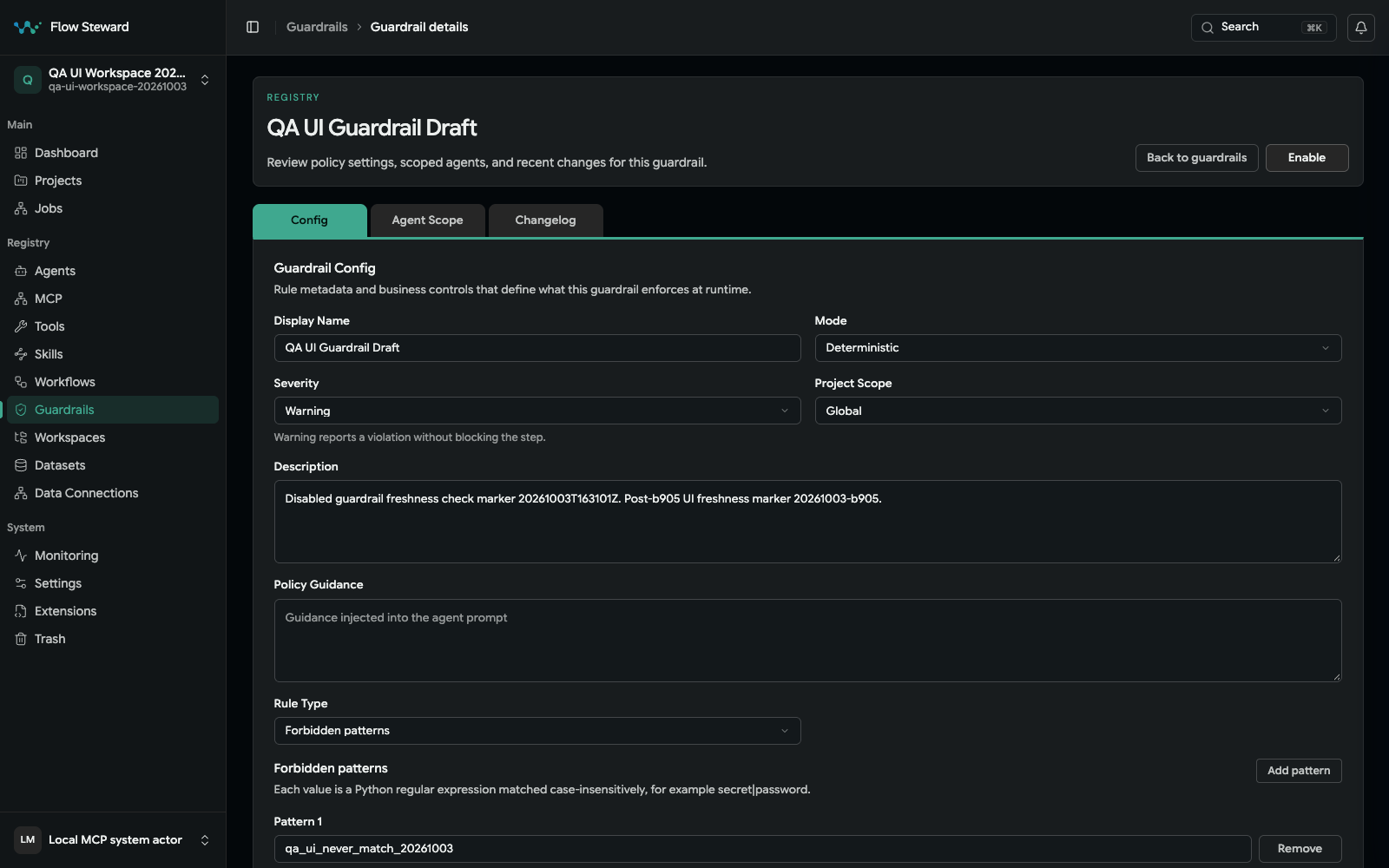
A synthetic draft guardrail. The screenshot shows configuration fields; it does not demonstrate a passing or blocked workflow run.
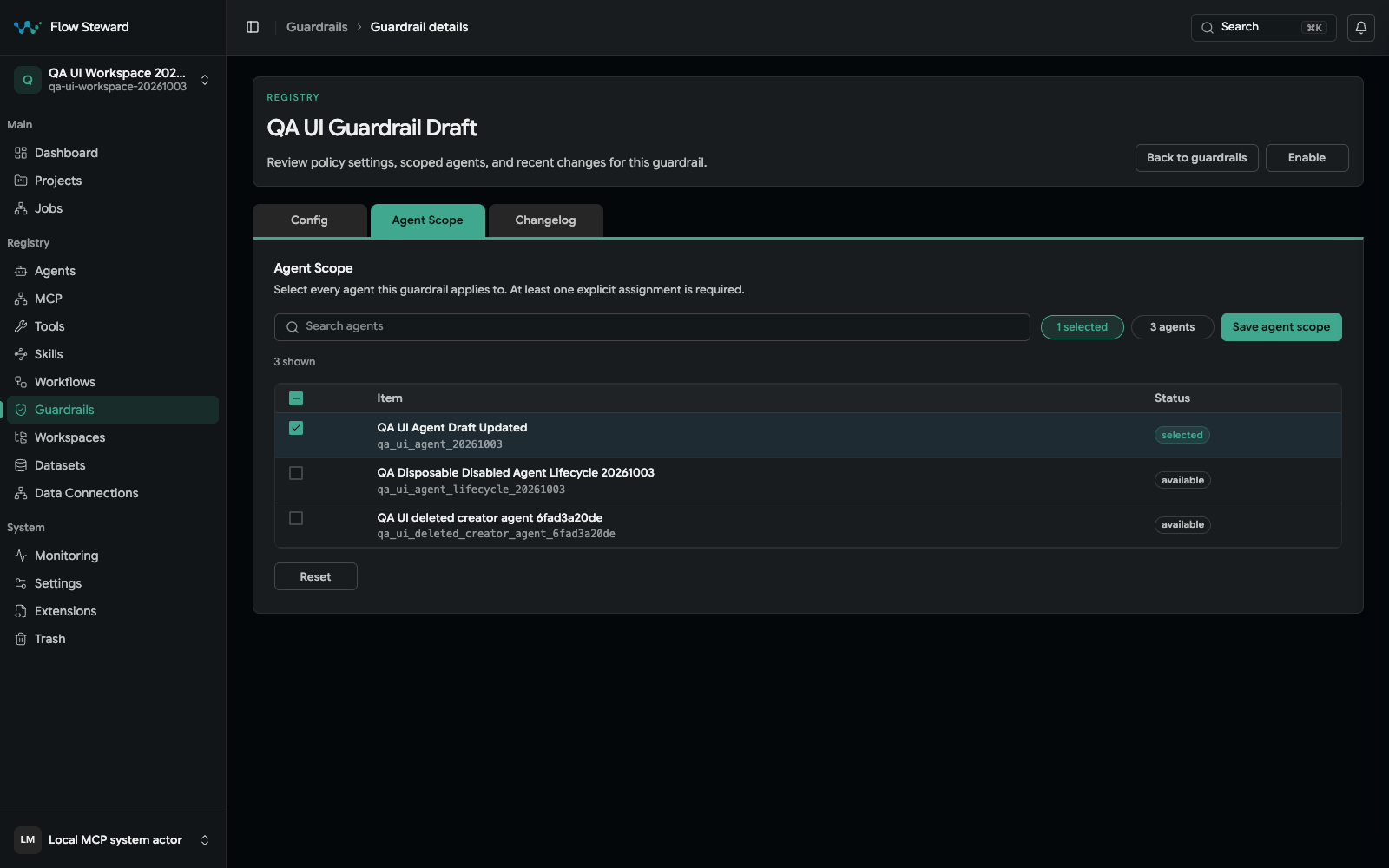
The existing synthetic assignment proves the editor requires explicit agent scope. No assignment was changed or saved during capture.
Open Registry > Guardrails and review the deterministic rule configuration:
forbidden_patterns detects configured matches, while required_sections
detects missing configured sections. Set Project Scope to Global or one
project, then use Agent Scope to assign at least one explicit agent. Project
scope alone is not enough; the editor does not expose a workflow-scope or
generic action selector.
Choose severity deliberately. Warning records a violation without blocking the operation; Error blocks it. Save the agent scope, then run one controlled case that should pass and one that should violate the rule with an assigned agent. Diagnose the result from the job's guardrail/security evidence before weakening policy; a blocked Error result can be the expected safe outcome.
Restore from trash
Soft-deleted registry records appear in Trash. Restore records when they were
removed accidentally. Plan hard deletion only after dependent workflows,
projects, and jobs no longer need them.