Product Tour
Flow Steward is organized around operator work. The UI is not only an admin panel: it is the place where people inspect delivery work, approve risky transitions, and decide what automation is allowed to touch.
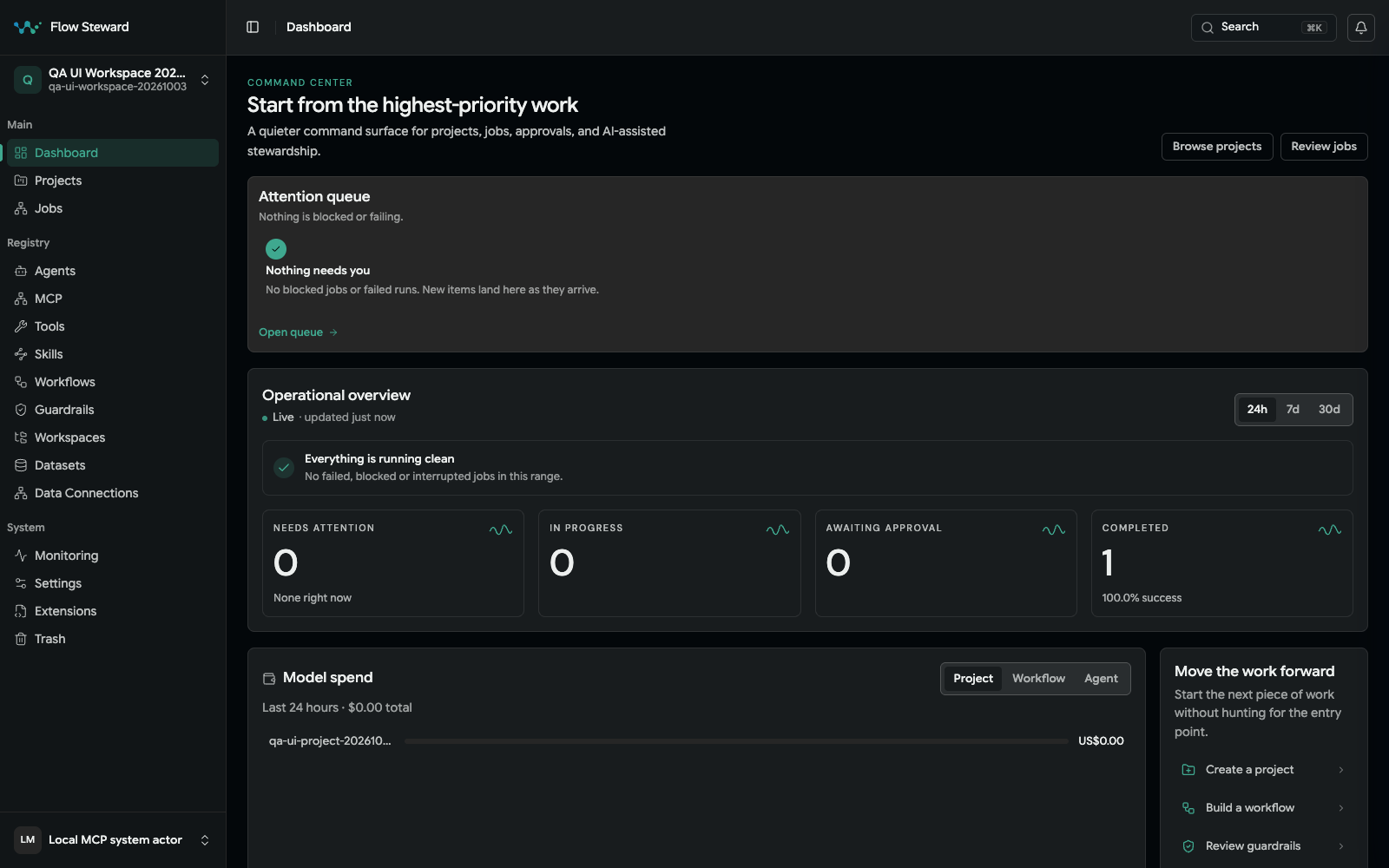
Dashboard in an isolated synthetic workspace. Open the full-size image to read the labels.
Main areas
| Area | Use it for |
|---|---|
| Dashboard | See current delivery activity, cost, failures, and attention signals. |
| Projects | Organize automation inside a workspace, maintain project rules and policy, attach datasets, assign data connections, and route notifications. |
| Jobs | Follow running work, review logs/messages/errors, approve or reject gates, retry, cancel, and restart. |
| Workflows | Create and manage executable delivery plans; browse the Workflow Catalog through Create workflow > From catalog. |
| Registry | Manage agents, skills, tools, MCP catalogs, workspaces, datasets, data connections, and guardrails. |
| Extensions | Browse the Extension Catalog in Marketplace; install, configure, update, and operate extension bundles. |
| Events | Inspect platform events, workflow step events, runtime messages, dispatch state, and redrive candidates. |
| Monitoring | Check services, queues, storage, runtime health, and operational state. |
| Settings | Manage users, roles, service accounts, model providers, security, retention, and notifications. |
| Trash | Restore soft-deleted registry and data objects or plan permanent deletion. |
Search within your scope
Open Search in the application header and enter a query. Use Everything or
the available category tabs, such as Jobs, Events, Messages, and
Workflows, to narrow results. Messages refers to runtime message results,
not a dedicated Messages tab on the job page.
Use Add filter for the available workspace, project, or other refinements;
change a filter's value or use Clear all to reset removable filters. Search
starts within the active workspace and remains constrained by your account,
role, and project access. A category or result does not grant access to its
destination or permit a privileged action.
Project knowledge-base and repository-code search are not public search surfaces. Internal schema objects remain read-only.
ChatShell and the contextual-assistant screens are not available in this frontend. Use the supported workflow, job, and external-agent entrypoints; do not expect a built-in chat screen.
Recommended first path
- Install the stack and create the first admin user.
- Create or inspect a workspace for the client, team, or operating boundary.
- Add one or more projects inside that workspace.
- Add users and choose roles.
- Add service accounts or PATs only for automation that needs them.
- Register MCP catalogs and tools.
- Add data connections and datasets if workflows need structured data.
- Review or create workflows.
- Run a controlled job and watch approvals, logs, and events.
How to think about the registry
The registry is where Flow Steward keeps reusable building blocks:
- Agents describe who performs work.
- Skills describe what an agent knows how to do.
- Tools and MCP catalogs describe executable capabilities.
- Data connections describe how Flow Steward reaches a data source.
- Datasets describe the safe subset of workspace data exposed to all workspace projects or selected projects.
- Guardrails describe policy constraints for automation.
Internal schema primitives such as data contracts, fields, and published blocks are system-managed and are not part of the normal user or administrator path.
For day-to-day operation, start from the workflow or job you care about, then open registry records only when you need to change what the automation is allowed to use.