Jobs And Approvals
A job is a tracked unit of work. It may come from a submitted task, a workflow trigger, a webhook, an MCP tool, or an operator action.
Job lifecycle
| State key | UI label | Meaning |
|---|---|---|
pending / queued | Queued | Accepted but not executing. |
in_progress | In progress | A worker is executing workflow steps. |
awaiting_approval | Waiting for approval | Human input is required. |
resume_pending | Resume queued | A durable approval/resume was accepted and is waiting for execution. |
blocked | Blocked | The job cannot proceed without external action. |
external_wait | Waiting on an external system | A declared external dependency has not completed. |
retryable_interrupted_step | Stopped on a retryable step | Terminal attempt; inspect policy before retry/restart. |
completed | Completed successfully | Terminal success. |
failed | Failed | Terminal unrecovered error. |
triage_needed | Needs triage | Terminal result requires operator diagnosis. |
cancelled | Cancelled | Terminal operator/system cancellation. |
max_iterations | Stopped after repeated retries | Terminal loop/retry cap. |
Restart is an action that creates a new attempt; it is not a canonical status. Available actions also depend on role, current attempt state, and runtime policy, so a status label alone does not promise that retry, restart, replay, resume, or cancel is permitted.
Inspect a job
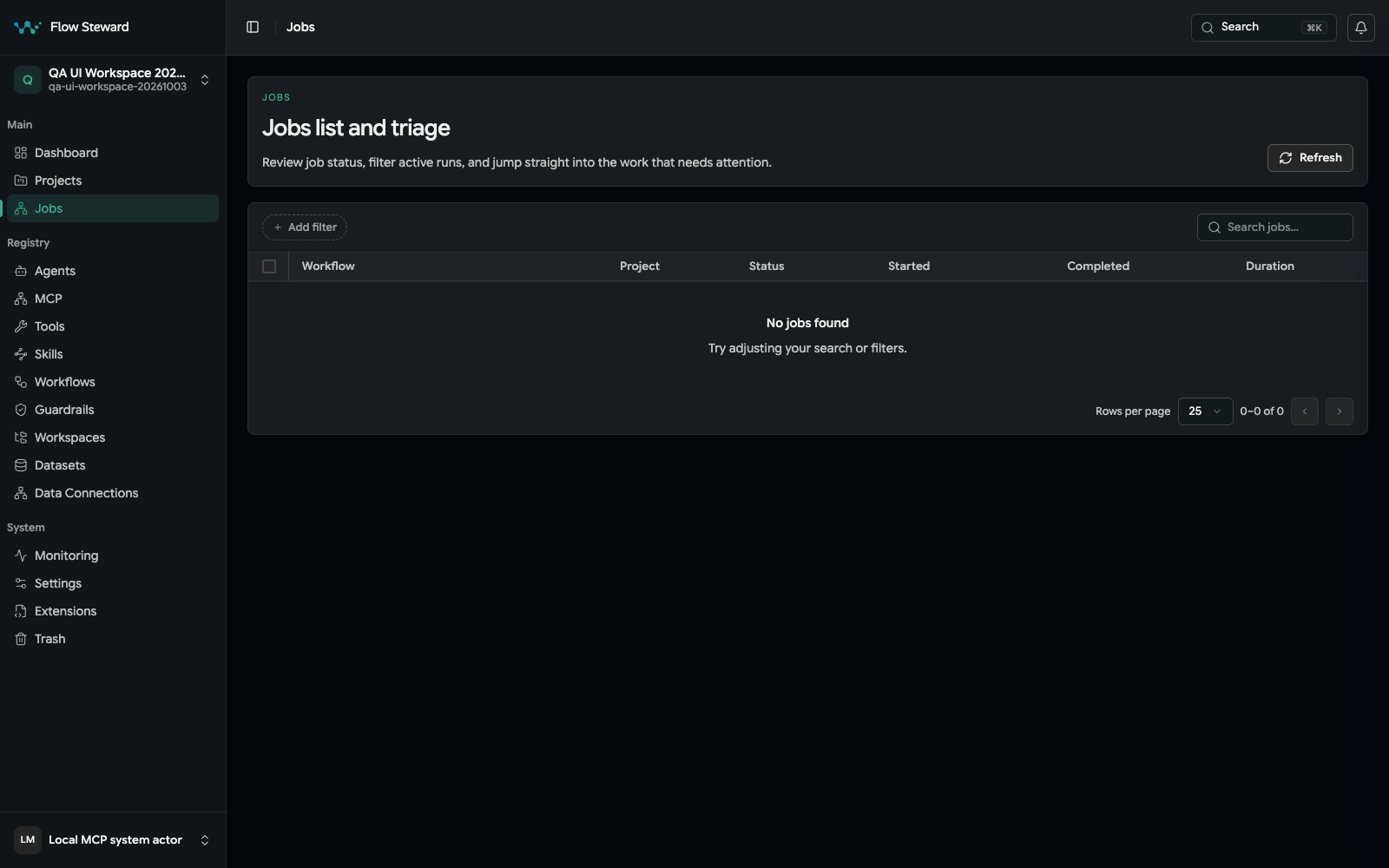
Jobs list in the isolated screenshot fixture. Approval packets, failed-run diagnostics, and job-detail actions require a job in the corresponding state and are not demonstrated by this image.
- Open
Jobs. - Select the job.
- Review the summary and current agent.
- Review
Failure summarywhen the run includes failure information. - Select a step in the execution waterfall to open
Step details. Inspect its inputs, outputs, message, generated files, andErrorswhen those are present. - Review
Decision historywhen recorded decisions are available, and the review workspace when a human gate is active. - Use authorized API/CLI access for raw logs, messages, and job events. The
current job page has no
Advanced diagnosticsdrawer or dedicatedOverview,Runtime,Decisions,Causal,Messages,Logs, orEventstabs. Backend diagnostic fields and runtime message projections do not imply named UI controls. Viewers can read scoped jobs, but cannot decide a gate, cancel, or restart them; admin/operator actions still depend on state and policy. - Check cost breakdown when model or tool usage matters.
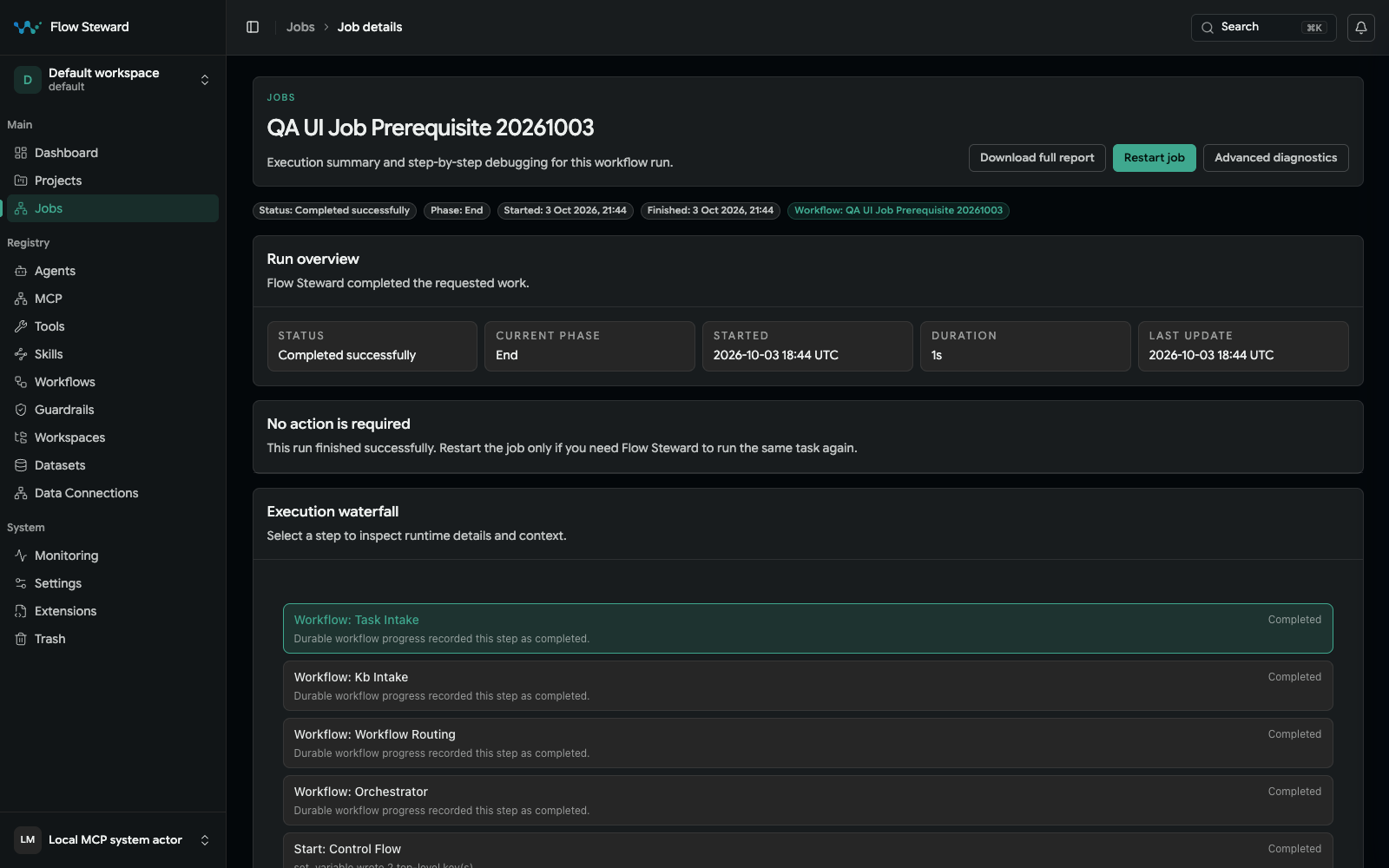
Historical capture from 2026-10-04 of a pre-existing synthetic provider-free run with no billable model usage. Its diagnostics controls are not the current page layout. No restart or diagnostic action was invoked during capture.
Handle an approval
- Open the job detail page.
- Read the approval packet and proposed next action.
- Check generated artifacts, logs, messages, and project context.
- Follow the gate's configured action labels rather than assuming every gate is a generic approve/reject dialog.
- Approve only when the proposed action is safe.
- Reject when the request is unclear, unsafe, or based on bad assumptions.
- Complete every required field. Some gates require Comment for rejection and refuse an empty submission; add useful context even when the comment is optional.
Restart or cancel
Cancel a job when it should not continue. Restart when the original request is still valid but the previous attempt failed for a recoverable reason.
Common examples:
- Restart after fixing a missing credential or service dependency.
- Cancel when a task was submitted to the wrong project.
- Reject approval when a generated change touches the wrong files.
CLI equivalents are documented in CLI Reference.