Datasets And Data Connections
Data connections and datasets are separate on purpose.
A data connection describes how Flow Steward reaches a source inside one workspace. A dataset describes which part of that source is safe and useful for projects and workflows.
This lets a workspace have several projects without giving every project the same data access. For example, a client workspace can have one CRM database connection, then separate datasets for the CRM project, public website project, and reporting workflow.
Scope model
| Object | Scope | Why it matters |
|---|---|---|
| Data connection | Workspace | Stores endpoint, environment, credentials, health, and schema metadata for a source. |
| Dataset | Workspace, then availability mode | Exposes selected resources and columns from a connection. |
| Project dataset binding | Project | Controls which specific projects can use a dataset when it is not workspace-wide. |
Workflow dataset_query step | Workflow/job | Queries the approved dataset during execution. |
Dataset availability has two modes:
All workspace projectsmakes the dataset available to every project in the workspace.Specific projects onlylets you select the projects that may use the dataset.
A project cannot attach a dataset from another workspace. A dataset's workspace cannot be changed after creation; create a new dataset in the target workspace when the data boundary changes.
Install a dataset connector
Dataset connectors come from extensions. The first bundled dataset connector surface wraps Google MCP Toolbox database prebuilts.
If the UI says no connectors are installed, install or enable an extension that exposes dataset connectors before creating data connections.
Add a data connection
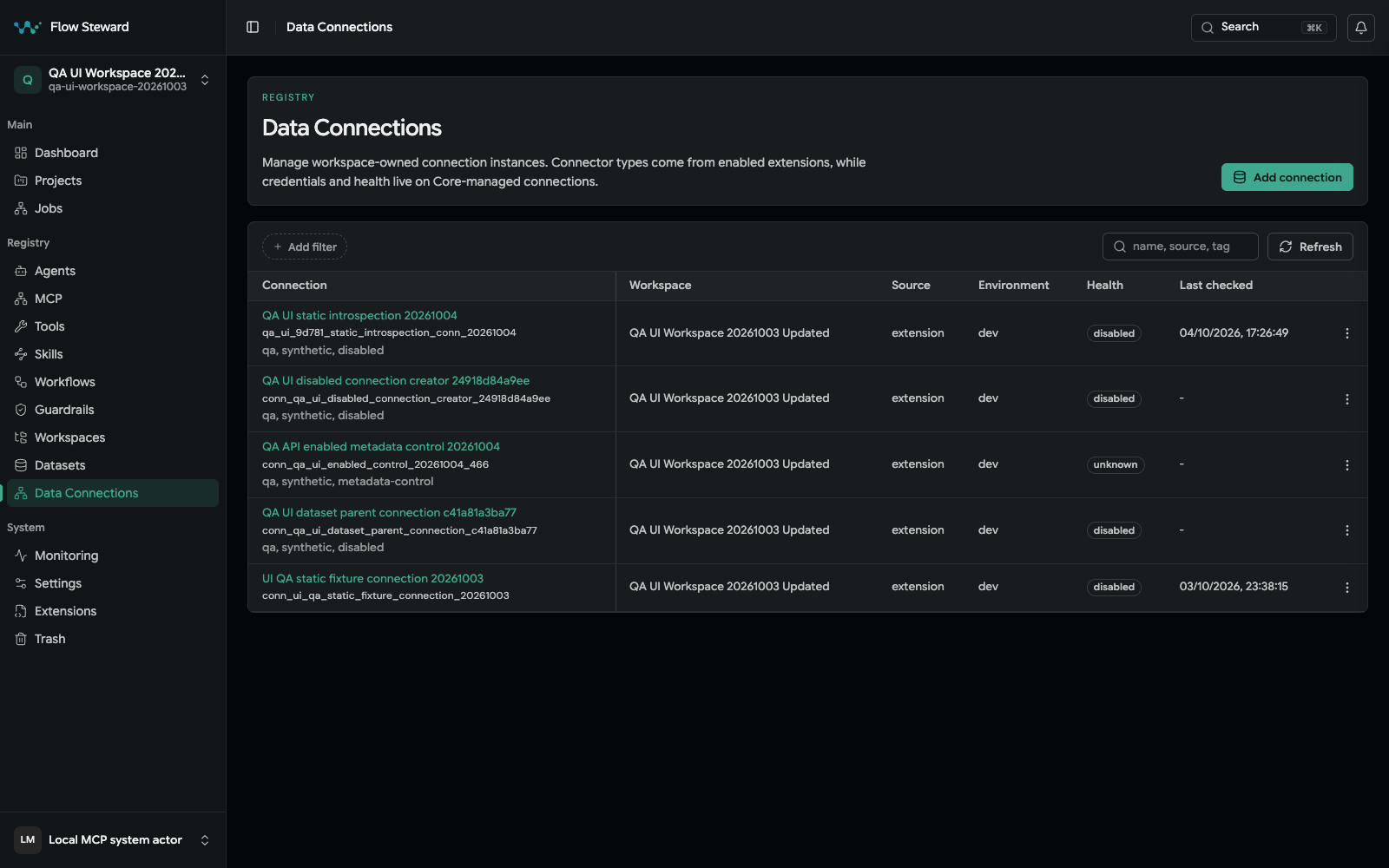
Synthetic data-connection records. Visible status is fixture state, not a live production connectivity test.
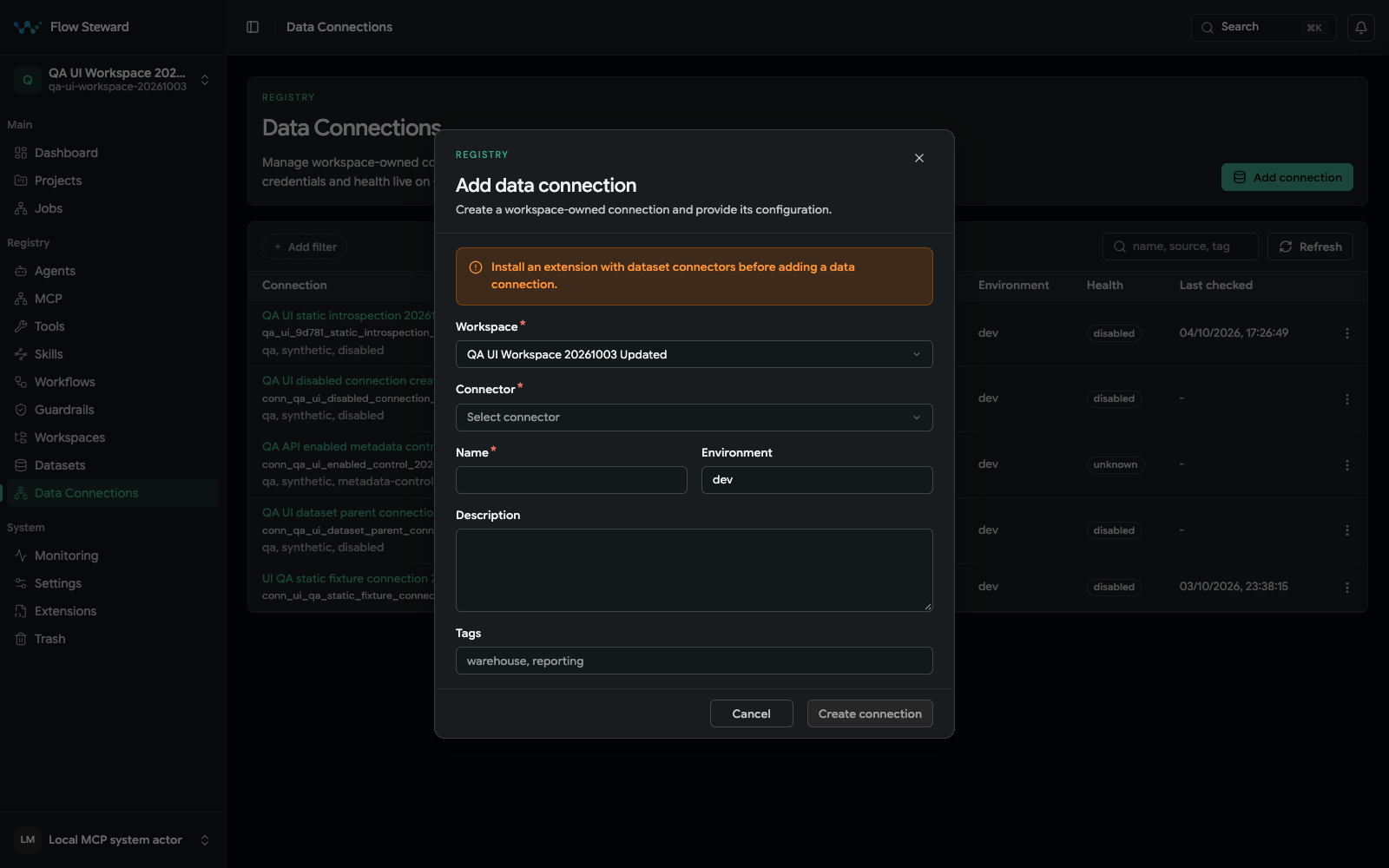
The fixture has no installed dataset connector, so Create connection is unavailable. No connection was created.
- Open
Registry. - Open
Data Connections. - Choose
New Connection. - Select the workspace.
- Select a connector, such as PostgreSQL, MySQL, SQLite, BigQuery, MongoDB, Neo4j, Redis, or another available prebuilt.
- Enter a display name and environment.
- Add host, port, user, database, and query parameters.
- Enter the password. It is stored through secret references.
- Save the connection.
- Test the connection.
- Introspect the connection to capture schema metadata.
Connections cannot be deleted while datasets depend on them.
Create a dataset
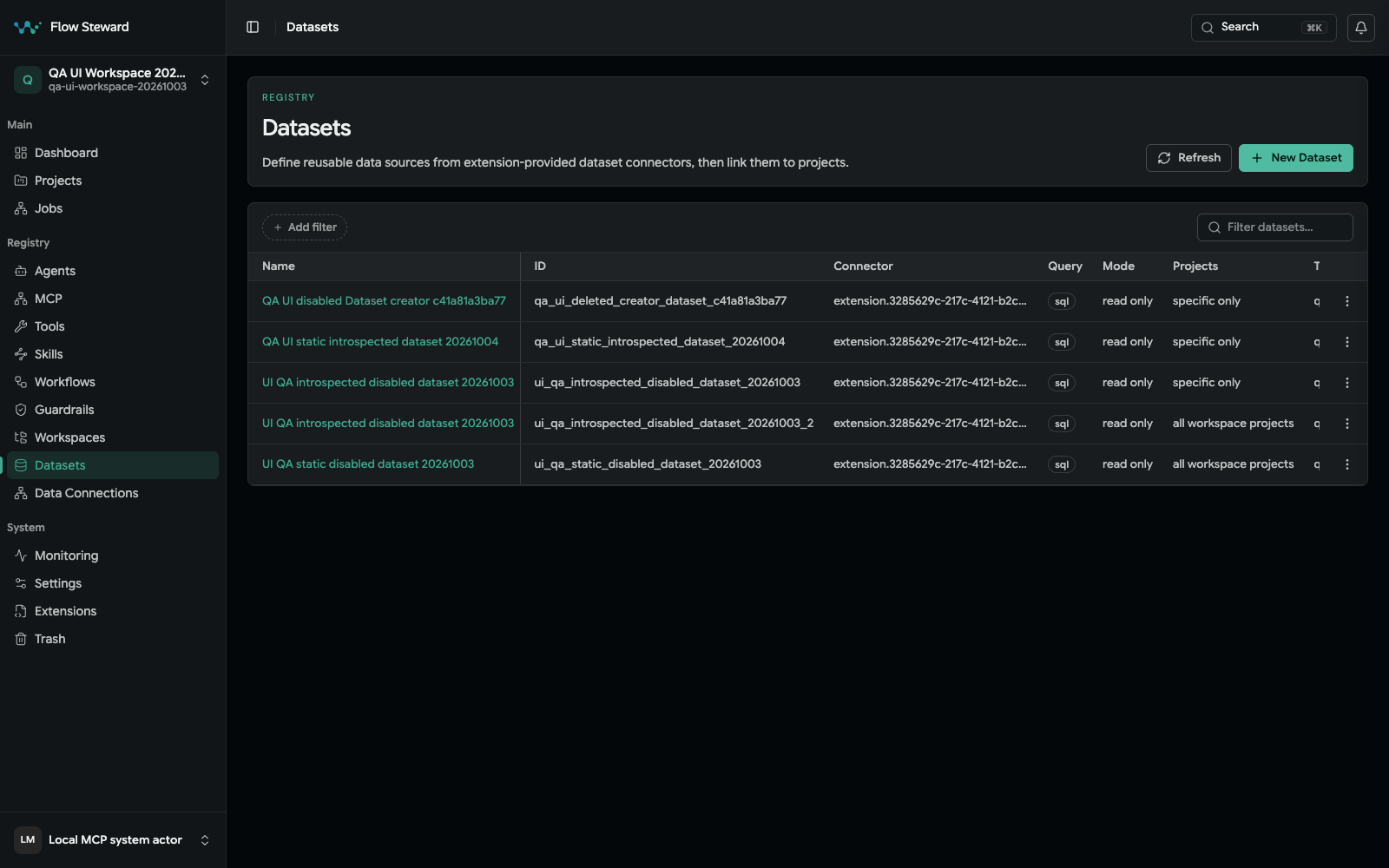
The dataset list in the isolated synthetic workspace.
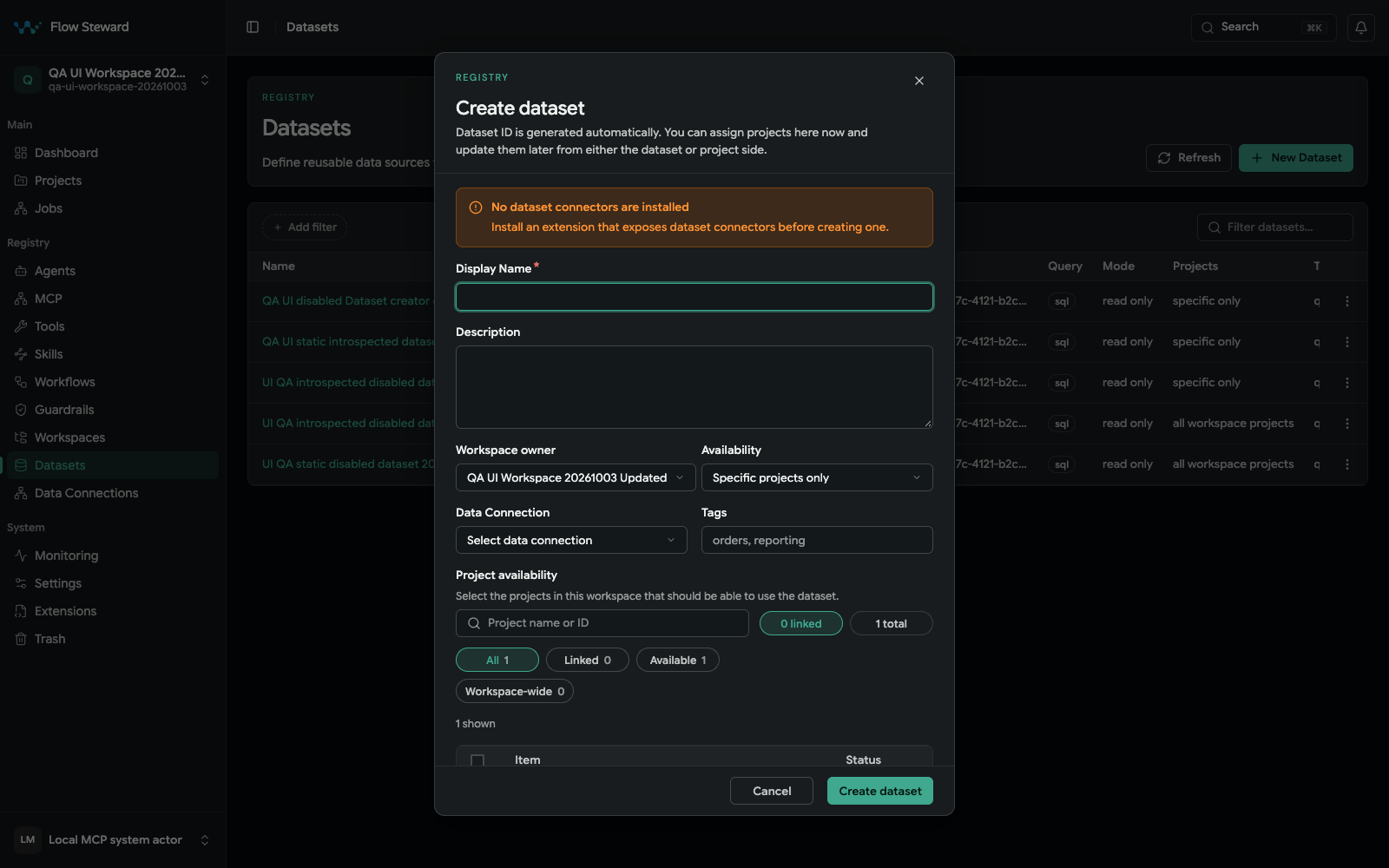
The form exposes dataset scope and schema controls, but the fixture reports no installed dataset connector. No dataset was created or introspected.
- Open
Registry. - Open
Datasets. - Choose
New Dataset. - Enter a display name and description.
- Select the workspace owner.
- Choose availability:
All workspace projectsfor broad shared datasets.Specific projects onlyfor tighter access.
- Select a data connection.
- Click
Introspect schema. - Select only the tables, resources, and columns that should be exposed.
- Save the dataset.
Start with a narrow resource selection. You can widen access later after the workflow proves what it actually needs.
Use All workspace projects for genuinely shared reference data. Use Specific projects only for customer data, production data, or data that should be
visible only to one delivery target.
Attach datasets to a project
- Open the project.
- Open the
Datasetstab. - Select available datasets.
- Save project datasets.
Workspace-wide datasets are available to all projects in the workspace. Specific-project datasets are available only where they are explicitly linked. Datasets from other workspaces are intentionally unavailable.
Create and verify a saved query
Dataset detail editing requires an administrator.
- Open the dataset detail page and its
Saved queriestab. - Create a stable query ID and parameterized SQL template. Use declared parameters; do not concatenate user text into SQL.
- Define input and output schemas, including required/null/array types.
- Validate the query before enabling it.
- Preview with a small non-sensitive parameter set and compare the returned columns/types with the output schema.
- Enable the query only after validation and preview succeed.
- Bind the dataset to the intended project, then select the saved query from a
dataset_querystep and map its bounded result.
An unknown parameter or schema/type mismatch should fail validation. Missing project/dataset scope should fail authorization. Preview rows are bounded and do not promise that an unrestricted export is safe or supported.
Use datasets in workflows
Use a dataset_query workflow step when workflow logic needs structured data.
The step should query a dataset, not the raw connection. That keeps project
access and resource scope enforceable.
Typical flow:
- Add a data connection.
- Introspect the source.
- Create a dataset with a narrow resource scope.
- Attach the dataset to a project.
- Add a
dataset_querystep to the workflow. - Run a test job and review logs/results.
Use datasets for workflow-time data access. Assign relevant workspace data connections in project settings for internal project context. This does not restore the removed project KB page, repository index, or schema-index service. See Project Context.