Events And Redrive
Use events when you need an audit-friendly timeline across jobs, workflows, extensions, notifications, and system actions. Use redrive only after you know a failed event can be replayed without duplicating an unsafe side effect.
When to open Events
Open Monitoring > Events when:
- a notification, webhook, callback, or extension action did not arrive;
- a workflow appears stuck between runtime steps;
- a provider says it received a request but Flow Steward did not record the expected follow-up;
- an operator needs a timeline for an incident or approval decision;
- a dead-lettered message needs review.
Useful filters
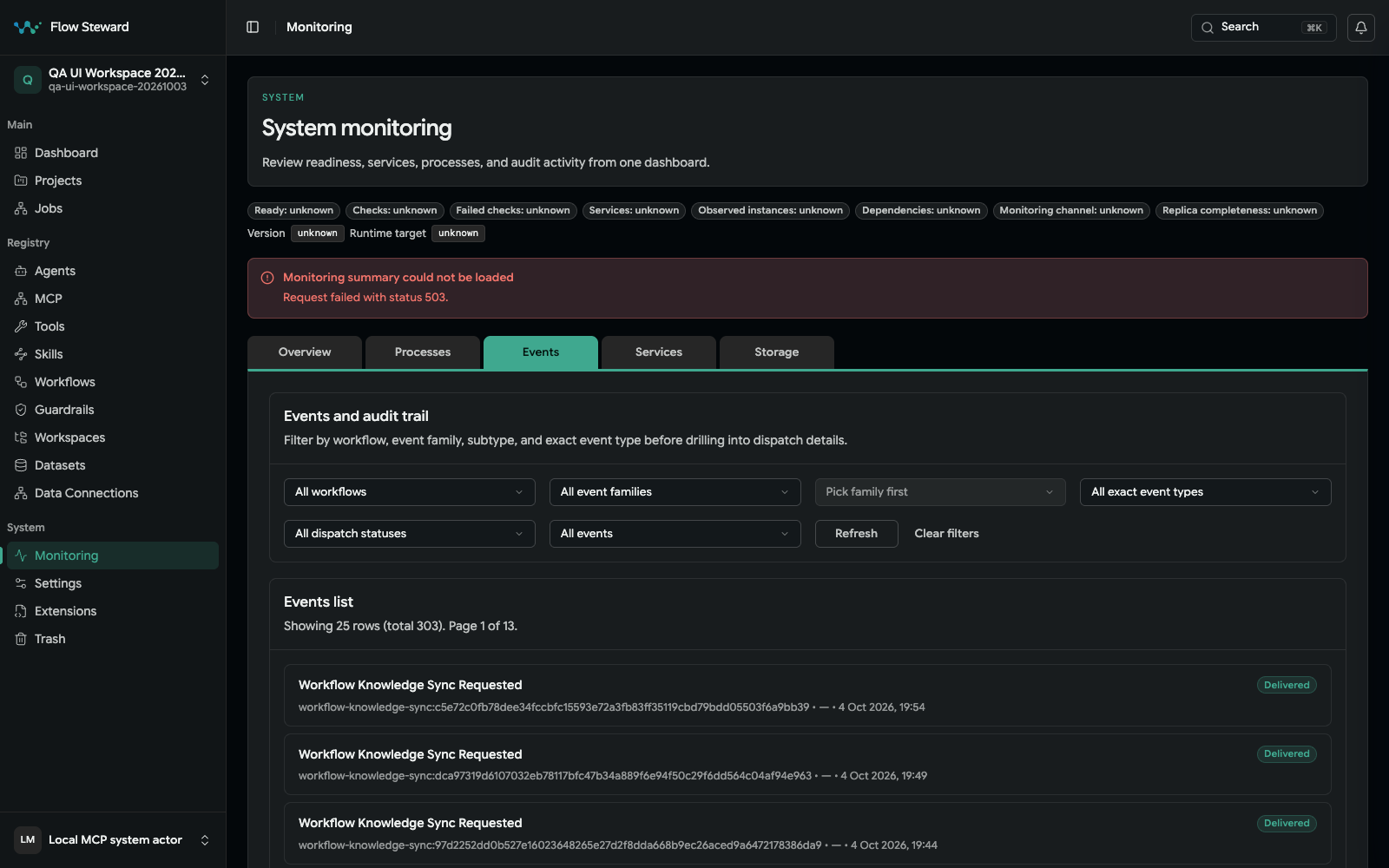
The Events inspector contains synthetic delivered events. The monitoring summary request visibly returned 503 in this isolated fixture, so this image is evidence for the Events controls only, not overall monitoring readiness or a successful redrive.
| Filter | Use it for |
|---|---|
| Workflow | Limit the timeline to one workflow definition. |
| Event family | Separate workflow, extension, notification, approval, and system events. |
| Category | Narrow broad event families into product areas. |
| Event type | Find one exact emitted event. |
| Dispatch status | Find matched, skipped, queued, dispatching, succeeded, failed, or dead-lettered records. |
| Created range | Bound an investigation window. |
Job identity can appear in an event's detail context, but it is not a list filter on the current Events inspector.
Safe redrive checklist
- Open the event and read the payload summary.
- Confirm the event target is still enabled and points to the expected provider, callback, or route.
- Check whether the original side effect may already have happened outside Flow Steward.
- Review related job messages, logs, approvals, and extension health.
- Fix missing credentials, disabled routes, network errors, or provider configuration before replaying.
- Choose one eligible
failedordead_letteredevent and click Redrive failed dispatches. - Treat Redrive requested successfully as an enqueue acknowledgement, not
completed delivery. The action resets all eligible failed/dead-lettered
dispatches for that selected event to
queued; it does not select one delivery or redrive multiple events. The service inspects at most 1,000 dispatch records for that event. - Follow dispatch history until each replay reaches
succeededor records a new failure.
Do not redrive events that create external records, send user-visible messages, approve work, or mutate production systems until the duplicate-effect risk is understood.
What to record during an incident
Capture:
- the event id and type;
- job id or workflow id;
- dispatch statuses before redrive, after requeue, and at final outcome;
- target route or provider;
- operator who performed the redrive;
- reason redrive was considered safe;
- follow-up action if replay failed again.
This evidence belongs with the job timeline or incident ticket, not only in chat or ad hoc notes.